HTML Formatter
Professional HTML Code Formatter • 2026 Edition
HTML Formatting Rules:
Show the formatterHTML formatting follows specific structural rules:
- Every opening tag must have a corresponding closing tag
- Tags are case-insensitive but lowercase is preferred
- Attributes must be quoted
- Elements must be properly nested
- Whitespace can be preserved or normalized
- Self-closing tags follow HTML5 conventions
HTML formatting improves readability and maintainability of HTML documents. Properly formatted HTML is easier to debug, validate, and process.
Example: A well-formed HTML document with proper indentation and line breaks:
<!DOCTYPE html>
<html>
    <head>
        <title>Sample Page</title>
    </head>
    <body>
        <h1>Hello World</h1>
        <p>This is a sample paragraph.</p>
    </body>
</html>
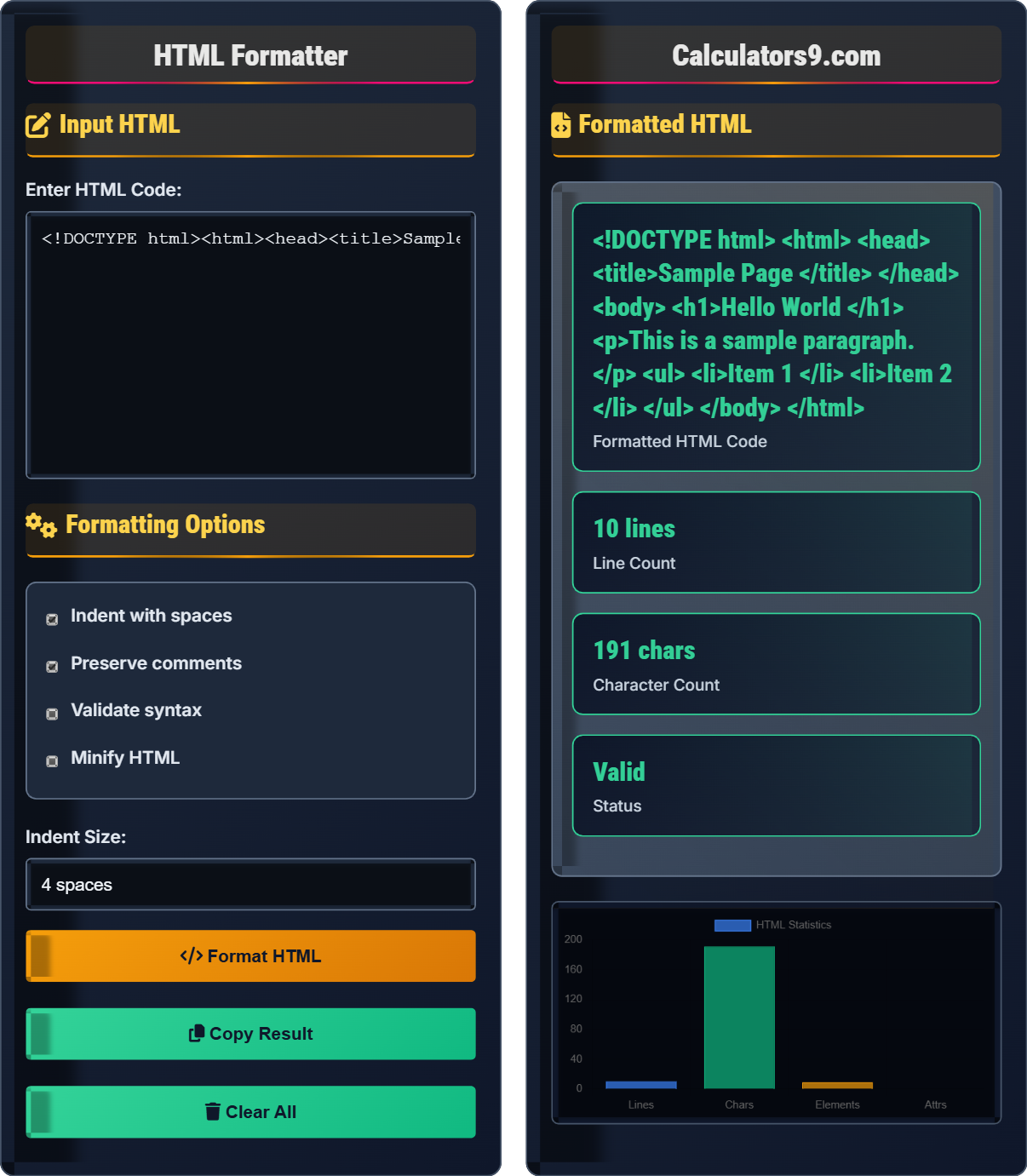
Input HTML
Formatting Options
Formatted HTML
<!DOCTYPE html>
<html>
    <head>
        <title>Sample Page</title>
    </head>
    <body>
        <h1>Hello World</h1>
        <p>This is a sample paragraph.</p>
        <ul>
            <li>Item 1</li>
            <li>Item 2</li>
        </ul>
    </body>
</html>
| Metric | Value |
|---|---|
| Lines | 13 |
| Characters | 247 |
| Elements | 7 |
| Attributes | 0 |
Comprehensive HTML Guide
HTML (HyperText Markup Language) is the standard markup language for creating web pages and web applications. HTML describes the structure of a web page semantically and originally included cues for the appearance of the document.
- All HTML elements should have a closing tag
- HTML tags are not case-sensitive
- All HTML elements must be properly nested
- All HTML documents must have a <html> root element
- All attribute values should be quoted
- Self-closing tags should follow HTML5 conventions
A standard HTML5 document follows this structure:
<!DOCTYPE html>
<html>
    <head>
        <title>Page Title</title>
    </head>
    <body>
        <h1>My First Heading</h1>
        <p>My first paragraph.</p>
    </body>
</html>
- Use semantic HTML elements
- Keep consistent indentation
- Use lowercase element names
- Always validate HTML syntax
- Add descriptive alt attributes to images
- Use meaningful class and ID names
HTML Formatting Learning Quiz
Which of the following is NOT a valid HTML rule?
The answer is C) Attributes don't need quotes. In HTML5, attribute values should be quoted, though it's not strictly required for simple values. However, it's considered best practice and required for values containing spaces or special characters. For example, <div class="my-class"> is correct, while <div class=my-class> is acceptable but not recommended.
Understanding HTML syntax rules is crucial because they ensure cross-browser compatibility and maintainability. While HTML is more forgiving than XML, following proper syntax rules prevents parsing errors and ensures consistent rendering across different browsers. Quoting attributes is especially important when values contain spaces or special characters.
Attribute: A name-value pair within an HTML tag that provides additional information about the element
Self-closing Tag: A tag that doesn't have content and closes itself (e.g., <br/>)
Well-formed HTML: HTML that follows all syntax rules
• Quote attribute values for consistency and reliability
• HTML tags are case-insensitive but lowercase is preferred
• Every opening tag must have a matching closing tag
• Always quote attribute values for safety
• Use lowercase for element and attribute names
• Validate HTML syntax regularly
• Forgetting to quote attribute values with spaces
• Improperly nesting HTML elements
• Not including DOCTYPE declaration
Explain the essential components of an HTML5 document. Why is the DOCTYPE declaration important?
An HTML5 document consists of several essential components:
- DOCTYPE declaration: <!DOCTYPE html>
- Root <html> element with optional lang attribute
- <head> element containing metadata
- <body> element containing visible content
Example structure:
<!DOCTYPE html>
<html lang="en">
    <head>
        <meta charset="UTF-8">
        <title>Page Title</title>
    </head>
    <body>
        <h1>Content</h1>
    </body>
</html>
The DOCTYPE declaration is important because it tells the browser which version of HTML the document is using, ensuring proper rendering mode. Without it, browsers may enter quirks mode, leading to inconsistent rendering.
The DOCTYPE declaration serves as a signal to web browsers about how to interpret the document. In HTML5, the DOCTYPE is simplified to <!DOCTYPE html> but still plays a crucial role in triggering standards mode. This ensures that modern CSS and JavaScript features work as expected across different browsers.
DOCTYPE: Document Type Declaration that specifies the HTML version
Standards Mode: Browser rendering mode that follows web standards
Quirks Mode: Legacy rendering mode for older HTML versions
• Always include DOCTYPE declaration at the top
• Use HTML5 DOCTYPE: <!DOCTYPE html>
• Include lang attribute in html element
• Place DOCTYPE at the very beginning of the document
• Use <meta charset="UTF-8"> for character encoding
• Include viewport meta tag for responsive design
• Forgetting the DOCTYPE declaration
• Using outdated DOCTYPE declarations
• Not specifying character encoding
You're given the following HTML structure that needs to be properly formatted: <div><h1>Title<p>Paragraph</p></h1></div>. What is wrong with this HTML structure, and how should it be corrected?
The problem is improper nesting of elements. In the given structure, the <p> tag begins inside the <h1> tag but closes outside of it. This violates HTML's nesting rule.
Corrected structure:
<div>
    <h1>Title</h1>
    <p>Paragraph</p>
</div>
In properly nested HTML, if an element opens inside another element, it must close before the outer element closes. Headings should not contain other block-level elements like paragraphs. The innermost element should be closed first, then the next innermost, and so on.
Proper nesting creates a tree-like structure that browsers can easily parse and render. When elements are improperly nested, browsers may automatically correct the structure, but this can lead to unexpected behavior. The nesting rule ensures that HTML documents maintain a clear parent-child relationship structure that follows web standards.
Nesting: The practice of placing one element completely inside another
Block-level Element: Elements that start on a new line (e.g., div, p, h1-h6)
Inline Element: Elements that don't start on a new line (e.g., span, a, strong)
• Elements must be properly nested (last opened, first closed)
• Block-level elements shouldn't be inside inline elements
• All elements must be closed in reverse order of opening
• Use indentation to visualize nesting structure
• Close elements immediately after opening child elements
• Think of HTML as a tree structure
• Opening a block element inside an inline element
• Forgetting to close nested elements
• Misaligning opening and closing tags
A developer has an HTML document with 1000 lines that appears to have formatting issues. The document is failing validation checks. What steps should they take to properly format and validate the HTML document?
Step 1: Check for proper DOCTYPE declaration at the beginning of the document
Step 2: Verify that every opening tag has a corresponding closing tag
Step 3: Ensure all attribute values are quoted
Step 4: Confirm that elements are properly nested
Step 5: Use an HTML formatter to standardize indentation and structure
Step 6: Validate against W3C HTML validator
Step 7: Use an HTML validator tool to catch any remaining syntax errors
Step 8: Review and fix any reported errors systematically from top to bottom
Large HTML documents can be challenging to validate manually. A systematic approach helps identify issues efficiently. HTML formatters not only improve readability but also help reveal structural problems. Validation tools provide specific error locations and descriptions, making debugging more efficient than manual inspection.
HTML Validator: A tool that checks HTML documents for well-formedness and validity
Well-formed: HTML that follows all syntax rules
Valid: HTML that is well-formed and conforms to standards
• Always validate HTML after formatting changes
• Fix errors from top to bottom in document order
• Use automated tools for large documents
• Use HTML editors with syntax highlighting
• Break large documents into smaller sections for validation
• Keep a backup of the original document
• Attempting to validate without fixing basic syntax errors first
• Ignoring error line numbers provided by validators
• Making multiple changes before validating again
Which of the following is NOT a benefit of properly formatted HTML?
The answer is D) Reduced file size. Properly formatted HTML with indentation and line breaks actually increases file size due to added whitespace. However, the benefits of improved readability, easier debugging, and better SEO far outweigh the slight increase in storage requirements. Minified HTML (without formatting) would reduce file size but sacrifice readability.
There's a trade-off between human-readable HTML and machine-optimized HTML. During development, formatted HTML is preferred for its readability and maintainability. For production environments where bandwidth is critical, HTML might be minified (whitespace removed). Modern browsers handle both formats equally well, so the choice depends on the intended use case.
Minified HTML: HTML with whitespace and formatting removed to reduce file size
Human-readable: Formatted HTML optimized for people to read
Machine-optimized: HTML optimized for processing speed and storage
• Formatted HTML has larger file size than minified HTML
• Both formats are equally valid for processing
• Choose format based on intended use case
• Use formatted HTML for development and debugging
• Use minified HTML for production when bandwidth matters
• Automate formatting during build processes
• Assuming formatted HTML is always smaller than unformatted
• Using minified HTML during development
• Not considering the trade-off between readability and size
HTML Basics
Markup language for creating web pages.
<tag>content</tag>
Where tag is element name and content is data.
- Tags should be properly closed
- Case sensitivity doesn't apply
- Attributes should be quoted
Best Practices
Consistent indentation improves readability.
- Check syntax rules
- Validate against standards
- Test in browsers
- Document changes
- Use semantic elements
- Keep structure simple
- Preserve accessibility
- Consider SEO implications
FAQ
Q: Why is HTML formatting important for developers?
A: HTML formatting is crucial for several reasons:
- Readability: Properly indented HTML is much easier to read and understand
- Debugging: Well-formatted HTML makes it easier to spot structural errors
- Maintainability: Team members can quickly comprehend and modify HTML structures
- SEO: Search engines prefer well-structured HTML
- Accessibility: Proper formatting supports screen readers
For example, consider this poorly formatted HTML:
<div><h1>Title</h1><p>Content</p></div>
Versus the same content properly formatted:
<div>
    <h1>Title</h1>
    <p>Content</p>
</div>
The second version clearly shows the hierarchical structure, making it much easier to work with.
Q: What's the difference between HTML validation and formatting?
A: There's an important distinction between HTML validation and formatting:
- HTML Validation: Checks if the HTML follows all syntax rules and standards. Ensures proper nesting, correct tag usage, and compliance with HTML5 specifications.
- HTML Formatting: Focuses on the visual presentation and organization of the code, including indentation, spacing, and readability.
Example of valid but poorly formatted HTML:
<!DOCTYPE html><html><head><title>Title</title></head><body><h1>Header</h1><p>Paragraph</p></body></html>
Same content properly formatted:
<!DOCTYPE html>
<html>
    <head>
        <title>Title</title>
    </head>
    <body>
        <h1>Header</h1>
        <p>Paragraph</p>
    </body>
</html>
Both are valid HTML, but the second is much more readable and maintainable.