Video Compressor
Professional video compression • Size reduction
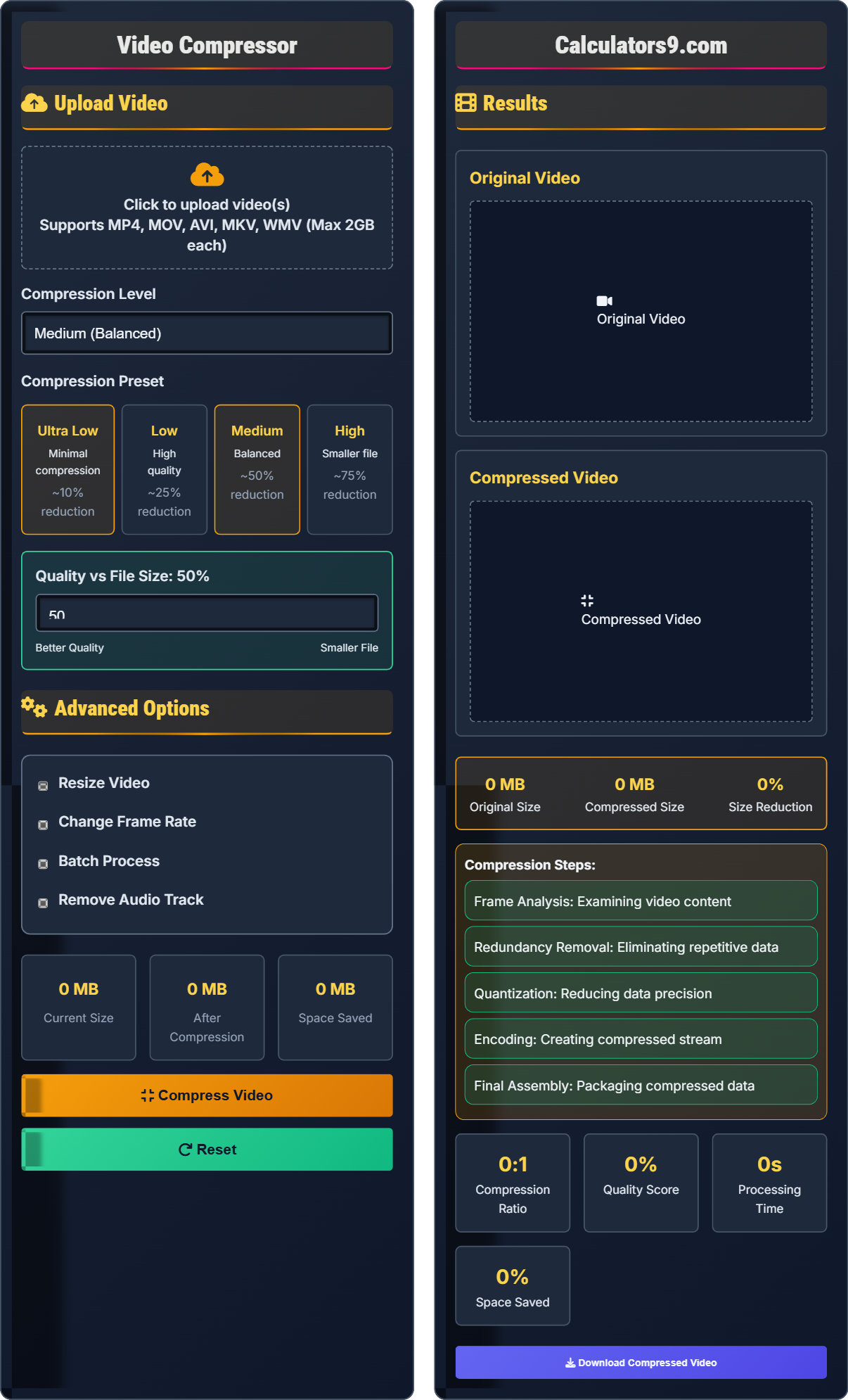
Video Compression Process:
Show the toolVideo compression reduces file size by removing redundant or less important visual information using sophisticated algorithms. The process includes:
Key steps include:
- Analysis: Examining frames for redundancy
- Prediction: Predicting frame content from adjacent frames
- Quantization: Reducing precision of visual data
- Entropy Coding: Efficiently encoding remaining data
Compression Ratios: H.264 typically achieves 100:1-200:1, H.265 achieves 150:1-300:1.
Quality Impact: Compression affects quality differently based on content.
Processing Time: Typically 2-10 minutes per minute of video depending on settings.
Upload Video
Advanced Options
Results
Original Video
Compressed Video
- Frame Analysis: Examining video content
- Redundancy Removal: Eliminating repetitive data
- Quantization: Reducing data precision
- Encoding: Creating compressed stream
- Final Assembly: Packaging compressed data
Comprehensive Video Compression Guide
Video compression is the process of reducing the size of video files by removing redundant or less important visual information. This is achieved through sophisticated algorithms that analyze and encode video data more efficiently, allowing for smaller file sizes while maintaining acceptable quality.
Different compression methods offer various trade-offs between file size and quality:
- Lossless Compression: Preserves all original data (rarely used for video)
- Lossy Compression: Removes some data for smaller files (standard method)
- Temporal Compression: Uses similarities between frames
- Spatial Compression: Compresses within individual frames
Different codecs offer varying compression efficiency:
- H.264: Excellent compatibility, good compression
- H.265/HEVC: Better compression than H.264, requires more processing
- VP9: Open-source alternative, good for web
- AV1: Latest standard, excellent compression, limited hardware support
- For Social Media: Use H.264 with 15-20 Mbps for 1080p
- For Email: Compress heavily but maintain basic quality
- For Archival: Use less aggressive compression to preserve quality
- For Streaming: Match bitrate to expected viewer connection speeds
- Animated Content: Requires higher bitrates than static scenes
Compression Fundamentals
Bitrate measures the amount of data processed per second, typically expressed in megabits per second (Mbps). Higher bitrates generally mean better quality but larger file sizes.
Compression ratio = Original File Size / Compressed File Size
Quality Score = (1 - (Compressed Size / Original Size)) × 100%
- Higher compression ratios mean smaller files but potential quality loss
- Content complexity affects compression efficiency
- Resolution and frame rate impact file size significantly
Optimization Strategies
VBR adjusts bitrate based on scene complexity, using more data for complex scenes and less for simple ones.
- High Quality: 15-20 Mbps for 1080p
- Balanced: 8-12 Mbps for 1080p
- Low Quality: 3-6 Mbps for 1080p
- Animation requires higher bitrates than live action
- 4K video needs 4x the bitrate of 1080p
- Audio bitrate also affects total file size
- Longer videos benefit more from compression
Video Compression Learning Quiz
Which compression level provides the best balance between file size and quality for most general use cases?
The answer is B) Medium (Balanced). This level typically achieves a 50% reduction in file size while maintaining good visual quality. It provides the optimal trade-off between file size and quality for most general purposes, including sharing on social media, email attachments, and general storage.
This question tests understanding of the fundamental trade-off in video compression between file size and quality. The balanced setting represents the "sweet spot" where users get significant size reduction without noticeable quality loss for most content. This concept builds on the principle of diminishing returns in compression efficiency.
Compression Ratio: The ratio of original size to compressed size
Quality Threshold: The point where quality loss becomes noticeable
Diminishing Returns: Point where additional compression provides little benefit
• Medium compression offers best balance
• Ultra high compression causes quality loss
• Ultra low compression doesn't save space
• Start with medium compression for most files
• Test different levels for critical content
• Consider the playback device when choosing
• Using ultra-high compression for important content
• Not testing compression results visually
• Ignoring playback device capabilities
Why does a video with many rapid scene changes compress less efficiently than a video with static scenes?
Video compression relies heavily on temporal redundancy—similarities between consecutive frames. In videos with rapid scene changes, each frame differs significantly from the previous one, reducing the effectiveness of predictive compression. Static scenes have high temporal redundancy, allowing compression algorithms to store only the differences between frames rather than full frame data. This results in much smaller file sizes for static content compared to dynamic content.
This question explores the fundamental principle of temporal compression. Video codecs like H.264 and H.265 use inter-frame compression to predict frame content based on adjacent frames. When scenes change rapidly, the prediction becomes inaccurate, forcing the codec to store more complete frame data. This demonstrates why compression efficiency varies significantly based on content characteristics.
Temporal Redundancy: Similarity between consecutive video frames
Inter-frame Compression: Compression using differences between frames
Scene Changes: Points where video content changes dramatically
• Dynamic content compresses less efficiently
• Expect larger files for dynamic content
• Use higher bitrates for action sequences
• Consider content type when setting compression
• Using same compression settings for all content types
• Not accounting for content complexity
• Assuming all videos compress equally
A video editor needs to compress a 5-minute 1080p video (1.5GB) for email attachment. The email service has a 25MB limit. Calculate the required compression ratio and recommend the appropriate compression level to achieve this goal while maintaining acceptable quality.
Required compression ratio = Original Size / Target Size = 1536MB / 25MB = 61.44:1. This extremely high compression ratio (98.4% size reduction) would severely degrade quality. More realistic approach: 10:1 compression (to ~154MB) using ultra-high settings, then split into multiple parts. Alternatively, use a file-sharing service. For 50% quality preservation, aim for 3:1 compression (~512MB), still too large for email.
This problem demonstrates the practical limitations of compression. The required 61:1 ratio is beyond what maintains acceptable quality. The mathematical relationship shows that extreme compression requirements often necessitate alternative solutions. This teaches students to consider the feasibility of compression goals and explore other options when compression alone is insufficient.
Compression Ratio: Original size divided by compressed size
Feasibility: Practical achievability of compression goals
Quality Preservation: Maintaining acceptable visual quality
• Extreme compression ratios sacrifice quality
• Calculate required ratios before compressing
• Consider cloud storage for large files
• Split videos if needed for size limits
• Expecting impossible compression ratios
• Not considering quality implications
• Ignoring alternative file sharing methods
A content creator needs to compress 20 videos (average 10 minutes each) from 4K to 1080p for web upload. The compression process takes 3 minutes per minute of video. Calculate the total processing time and propose optimization strategies to reduce the overall time while maintaining quality.
Total processing time = 20 videos × 10 minutes × 3 minutes processing per minute = 600 minutes = 10 hours. Optimization strategies: (1) Use multi-threaded processing to compress multiple videos simultaneously; (2) Upgrade hardware (faster CPU/GPU with hardware encoding); (3) Use faster encoding presets (faster but slightly lower compression); (4) Distribute processing across multiple machines; (5) Use cloud-based compression services. With 4-core processing, time reduces to ~2.5-3 hours.
This represents a classic scalability problem in video production. The relationship between video length and processing time is linear, but when multiplied by multiple files, it becomes a significant factor. Parallel processing techniques allow for more efficient resource utilization. Understanding computational complexity helps in planning large-scale video operations.
Parallel Processing: Executing multiple tasks simultaneously
Hardware Acceleration: Using specialized hardware for encoding
Computational Complexity: Relationship between input size and processing time
• Processing time scales linearly with video length
• Multi-threading can significantly reduce time
• Quality settings affect processing time
• Use hardware acceleration when available
• Plan large batches during off-peak hours
• Consider cloud processing for large jobs
• Not accounting for processing time in project planning
• Running large batches during peak hours
• Not utilizing available hardware resources efficiently
Which codec provides the best compression efficiency for a given quality level?
The answer is D) AV1. AV1 provides the best compression efficiency of the listed codecs, achieving 20-30% better compression than H.265 at the same quality level. However, H.265/HEVC offers the best balance of efficiency and hardware support. AV1 requires more processing power but delivers superior compression efficiency.
This question tests knowledge of codec evolution and trade-offs. Each new generation of codecs aims to improve compression efficiency over predecessors. However, adoption depends on hardware support and processing requirements. Understanding these relationships helps users make informed decisions based on their specific needs and constraints.
Compression Efficiency: Quality achieved per bit of data
Hardware Support: Availability of dedicated processing hardware
Processing Requirements: Computational resources needed
• Newer codecs offer better efficiency
• Hardware support affects practical use
• Processing requirements vary by codec
• Use H.264 for broad compatibility
• Use H.265 for better efficiency
• Consider AV1 for maximum compression
• Using outdated codecs unnecessarily
• Not considering device compatibility
• Ignoring hardware acceleration options
FAQ
Q: What's the difference between constant bitrate (CBR) and variable bitrate (VBR) compression?
A: The key differences are:
- CBR (Constant Bitrate): Uses the same bitrate throughout the video
- VBR (Variable Bitrate): Adjusts bitrate based on scene complexity
Mathematically, for a video of duration T seconds:
\( \text{CBR File Size} = \text{Bitrate} \times T \)
\( \text{VBR File Size} = \int_0^T \text{Bitrate}(t) \, dt \)
VBR typically produces better quality at the same file size because it allocates more bits to complex scenes and fewer to simple scenes, optimizing the overall quality-to-size ratio.
Q: How much quality will I lose when compressing a 4K video to 1080p?
A: When downsampling 4K to 1080p, you lose resolution but not necessarily quality:
- Resolution Loss: 75% of spatial detail (from 3840×2160 to 1920×1080)
- Quality Retention: Can maintain good visual quality
- File Size: Approximately 75% size reduction
The quality loss depends on the downsampling algorithm used. High-quality downscaling can preserve much of the visual fidelity while significantly reducing file size. The effective resolution for most viewers watching on 1080p screens will appear similar to native 1080p content.
Downsampling ratio calculation:
\( \text{Resolution Ratio} = \frac{3840 \times 2160}{1920 \times 1080} = 4:1 \)