Video Converter
Professional format converter • Bulk processing
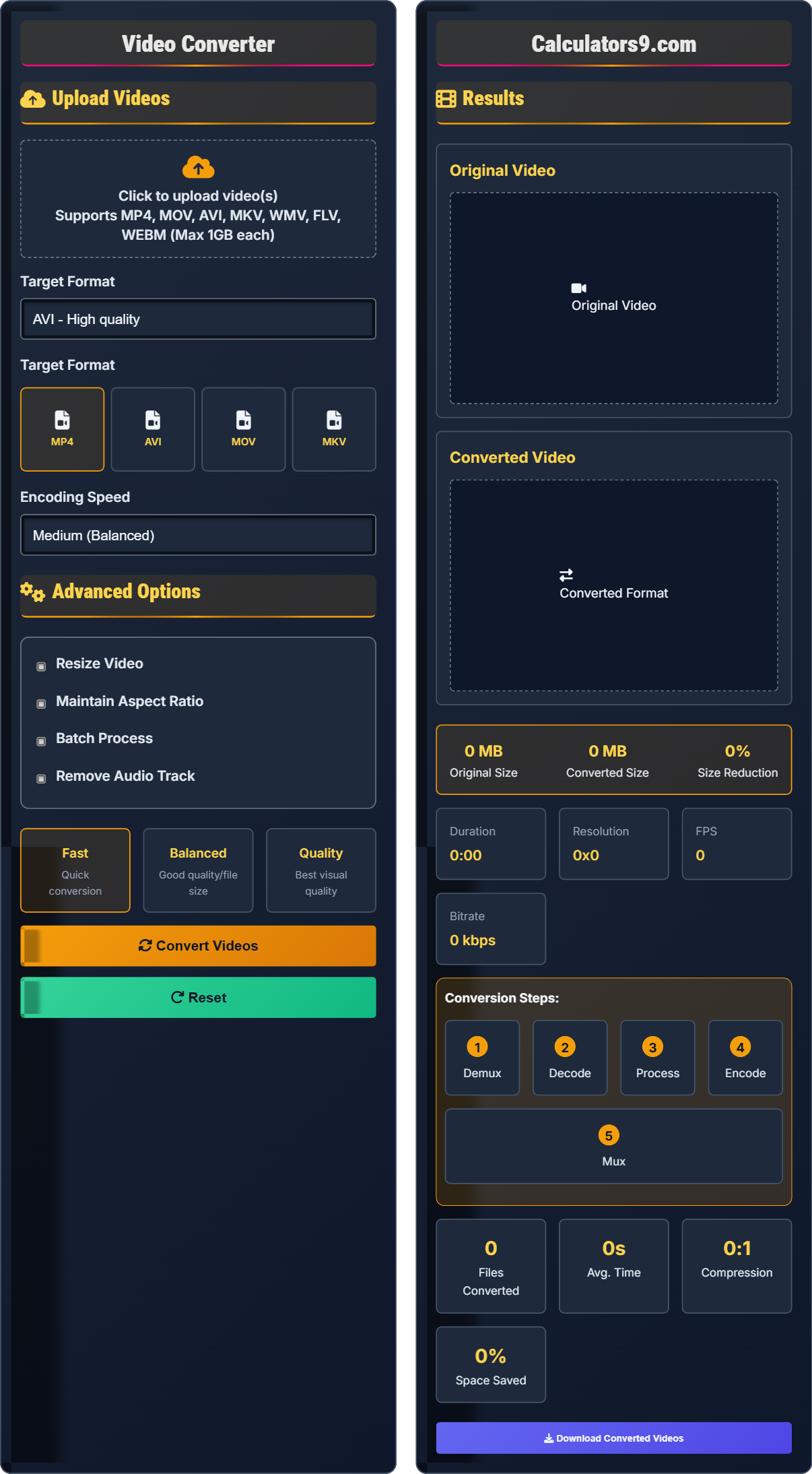
Video Conversion Process:
Show the toolVideo conversion involves decoding video data from one format and re-encoding to another, potentially changing codecs, compression, and quality. The process includes:
Key steps include:
- Demuxing: Separating video and audio streams
- Decoding: Converting compressed data to raw format
- Processing: Applying transformations and optimizations
- Encoding: Compressing to target format
- Muxing: Combining streams back together
Conversion Ratios: MP4 typically achieves 20:1 compression, MOV is less compressed.
Supported Formats: MP4, AVI, MOV, MKV, WMV, FLV, WEBM, and more.
Processing Time: Typically 1-5 minutes per minute of video depending on settings.
Upload Videos
Advanced Options
Results
Original Video
Converted Video
Comprehensive Video Conversion Guide
Video conversion is the process of transforming video data from one format to another, potentially changing codecs, compression, and quality parameters. This allows videos to be optimized for different platforms, devices, or storage requirements.
Different formats serve various purposes and have distinct characteristics:
- MP4: Most compatible format, H.264/H.265 codec
- AVI: Older format, high quality but larger files
- MOV: Apple format, high quality for Mac devices
- MKV: Container format supporting multiple streams
Each format has unique characteristics that affect conversion:
- MP4: Excellent compatibility, efficient compression, widely supported
- AVI: Less compressed, larger files, older technology
- MOV: Apple ecosystem optimized, high quality, larger files
- MKV: Supports multiple audio/subtitle tracks, flexible container
- From AVI to MP4: Significant size reduction with minimal quality loss
- From MOV to MP4: Better cross-platform compatibility
- For Web Streaming: Use H.264 codec in MP4 container
- For Archival: Consider lossless or high-bitrate encodes
- Batch Processing: Convert multiple videos efficiently with consistent settings
Conversion Fundamentals
A video codec is a device or software that compresses/decompresses digital video data for storage or transmission.
Algorithms decode source format and encode to target format with appropriate compression.
- Lossy conversions are irreversible
- Audio tracks may be affected during conversion
- Metadata may be stripped during conversion
Optimization Strategies
Bitrate measures the amount of data processed per unit of time, affecting quality and file size.
- Streaming: MP4 with H.264 codec
- Editing: ProRes or DNxHD for quality
- Archival: High-bitrate MP4 or MOV
- MP4 ideal for web streaming
- MOV for Apple ecosystem
- AVI for legacy compatibility
- Consider device compatibility
Video Conversion Learning Quiz
Which video format is best for uploading videos to social media platforms?
The answer is B) MP4. MP4 is the most widely supported format for social media platforms, offering excellent compression efficiency with the H.264 codec. It provides a good balance of file size and quality while maintaining compatibility across all major platforms and devices.
Format selection for social media requires considering both platform compatibility and compression efficiency. MP4 with H.264 encoding is universally accepted by Facebook, YouTube, Instagram, Twitter, and LinkedIn. The format offers efficient compression while maintaining good visual quality, making it ideal for internet distribution.
H.264: Video compression standard offering excellent quality-to-size ratio
Codec: Encoder/decoder for digital video data
Compatibility: Support across different platforms and devices
• MP4 offers best social media compatibility
• H.264 provides efficient compression
• Consider file size limits of platforms
• Use MP4 with H.264 for maximum compatibility
• Check platform-specific requirements
• Optimize bitrate for platform specifications
• Using MOV for non-Apple platforms (compatibility issues)
• Using AVI for web (large file sizes)
• Not considering platform-specific limits
What happens to video quality when you repeatedly convert between lossy formats?
Repeated conversion between lossy formats causes cumulative quality degradation known as "generation loss." Each conversion applies new compression, discarding data considered less important. The quality loss is irreversible and becomes increasingly noticeable with each conversion cycle. To minimize this, use lossless intermediate formats during editing and convert to final format only once at the end.
This demonstrates the fundamental difference between lossy and lossless compression in video. Lossy codecs like H.264 discard information deemed imperceptible, but this information is gone forever. When re-encoded, the codec makes new decisions about what to discard, potentially removing additional information. This cumulative effect is why professional workflows use lossless formats during editing.
Generation Loss: Cumulative quality degradation from repeated compression
Lossy Compression: Compression that permanently removes video data
Quantization: Process of reducing precision in video data
• Avoid repeated lossy conversions
• Edit in lossless formats when possible
• Maintain master copies in high quality
• Use proxy files for complex editing
• Repeatedly converting between lossy formats
• Not keeping original high-quality versions
• Converting edited files multiple times
A video editor needs to convert a 10-minute 4K video (4GB) for YouTube upload. The video currently uses an uncompressed format. Calculate the expected file size reduction and recommend the optimal encoding settings considering both quality and upload time.
Converting from uncompressed to H.264/MP4 typically achieves 20:1 to 50:1 compression ratios. Expected file size: 4GB ÷ 20 = 200MB average. For YouTube, recommended settings: H.264 codec, 1920x1080 resolution (for 4K source), 15-20 Mbps bitrate, 30 fps. This would result in approximately 1.1GB file size. For 4K YouTube upload: 3840x2160, 35-45 Mbps bitrate, yielding ~2.3GB. Upload time: ~10-15 minutes at 10 Mbps connection.
This problem demonstrates the dramatic difference in file sizes between professional formats and web-optimized formats. Uncompressed video contains maximum information but is impractical for distribution. The bitrate calculation shows the relationship between video quality and file size. YouTube's recommended bitrates ensure optimal playback quality for viewers.
Bitrate: Amount of data processed per second, measured in Mbps
Resolution: Number of pixels in width and height
Compression Ratio: Original size divided by compressed size
• Uncompressed to H.264 achieves 20:1+ compression
• Use YouTube's recommended encoder settings
• Consider 1080p for broader compatibility
• Use 2-pass encoding for better quality
• Uploading uncompressed files (impractically large)
• Using too low bitrate (poor quality)
• Not considering YouTube's specifications
A content creator needs to convert 50 videos from MOV to MP4 for a client. Each video is 5 minutes long. The conversion process takes 2 minutes per minute of video on their computer. Calculate the total processing time and propose optimization strategies to reduce the overall time while maintaining quality.
Total processing time = 50 videos × 5 minutes × 2 minutes processing per minute = 500 minutes = 8.33 hours. Optimization strategies: (1) Use multi-threaded encoding to process multiple videos simultaneously; (2) Upgrade hardware (faster CPU/GPU); (3) Use hardware acceleration (NVENC/Quick Sync); (4) Optimize encoding settings for speed; (5) Distribute processing across multiple machines. With 4-core processing, time reduces to ~2-3 hours. GPU acceleration could reduce time by 50-70%.
This represents a classic scalability problem in video production. The relationship between video length and processing time is linear, but when multiplied by multiple files, it becomes a significant factor. Parallel processing techniques allow for more efficient resource utilization. Understanding computational complexity helps in planning large-scale video operations.
Hardware Acceleration: Using GPU for video encoding tasks
Multi-threading: Using multiple CPU cores simultaneously
Computational Complexity: Relationship between input size and processing time
• Processing time scales linearly with video length
• Hardware acceleration can significantly reduce time
• Quality settings affect processing time
• Use GPU acceleration when available
• Plan large batches during off-peak hours
• Consider cloud processing for large jobs
• Not accounting for processing time in project planning
• Running large batches during peak hours
• Not utilizing available hardware resources efficiently
What happens to audio tracks when converting from a format that supports multiple audio tracks to MP4?
The answer is B) Only first audio track preserved. Standard MP4 containers typically support only one audio track. When converting from formats like MKV that support multiple audio tracks (different languages, commentary), only the primary audio track is usually preserved unless specifically configured otherwise in advanced conversion tools.
This highlights the importance of understanding container format limitations when planning conversions. Different video containers have varying capabilities for storing multiple audio tracks, subtitles, and metadata. This knowledge is crucial for professionals who need to preserve multilingual content or special audio tracks.
Container Format: File format that holds video, audio, and metadata
Audio Tracks: Separate audio streams within a video file
Format Limitations: Capabilities and restrictions of different formats
• MP4 typically supports only one audio track
• MKV supports multiple audio tracks
• Audio tracks may be lost during conversion
• Check format capabilities before conversion
• Use MKV for multiple audio tracks
• Extract audio tracks separately if needed
• Assuming all audio tracks are preserved
• Not checking format limitations
• Losing important audio content during conversion
FAQ
Q: What's the difference between H.264 and H.265 codecs, and when should I use each?
A: The key differences are:
- H.264: Older standard, excellent compatibility, ~2 Mbps for 1080p
- H.265: Newer standard, 40-50% better compression, ~1.2 Mbps for 1080p
Mathematically, compression efficiency can be expressed as:
\( \text{Efficiency} = \frac{\text{Quality}}{\text{Bitrate}} \)
H.265 achieves higher efficiency but requires more processing power. Use H.264 for broad compatibility and older devices, H.265 for newer devices and when file size is critical. H.265 is particularly beneficial for 4K content where the efficiency gains justify the processing overhead.
Q: Should I convert my 4K footage to 1080p before uploading to YouTube?
A: For YouTube, consider both options:
- Upload 4K: Better quality for viewers with 4K screens, longer processing time
- Convert to 1080p: Faster processing, smaller files, good quality for most viewers
YouTube's encoding process will generate multiple quality versions regardless. For 4K source material, upload in 4K if your audience has 4K capabilities. Otherwise, convert to 1080p at 15-20 Mbps bitrate for optimal quality-to-size ratio. The decision depends on your target audience and upload bandwidth.
The bandwidth requirement can be calculated as:
\( \text{Upload Time} = \frac{\text{File Size}}{\text{Upload Speed}} \)