Merge PDF
Professional PDF merging • Page selection
PDF Merging Process:
Show the toolPDF merging involves combining multiple PDF documents into a single file while preserving formatting and structure. The process includes:
Key steps include:
- Analysis: Examining PDF structures and metadata
- Reading: Parsing individual PDF files
- Combining: Merging content while preserving formatting
- Optimization: Compressing and optimizing final file
File Sizes: Combined size is typically sum of individual files.
Page Limits: Most PDF readers support up to 50,000 pages.
Processing Time: Typically 1-5 minutes depending on file size and complexity.
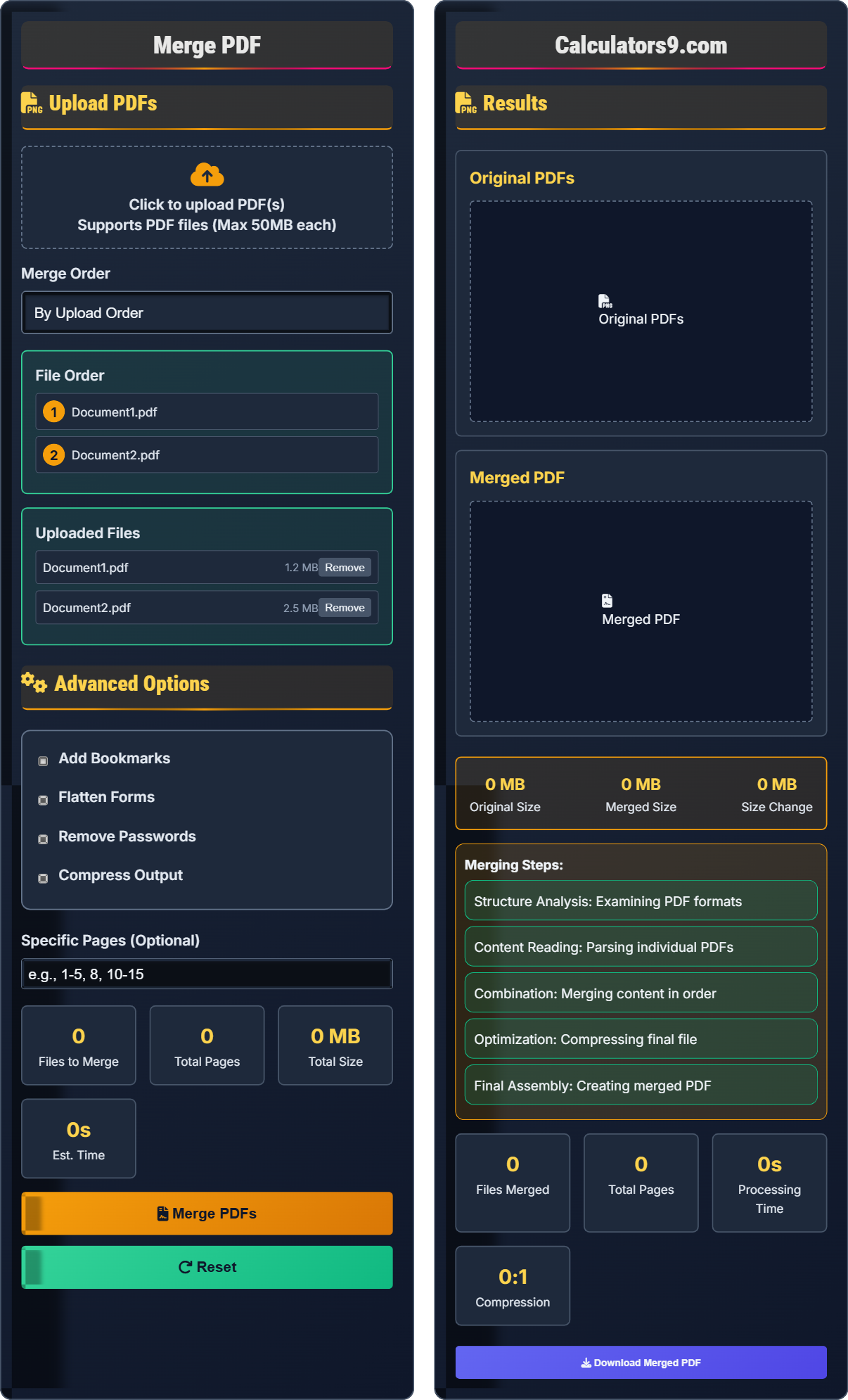
Upload PDFs
Advanced Options
Results
Original PDFs
Merged PDF
- Structure Analysis: Examining PDF formats
- Content Reading: Parsing individual PDFs
- Combination: Merging content in order
- Optimization: Compressing final file
- Final Assembly: Creating merged PDF
Comprehensive PDF Merging Guide
PDF merging is the process of combining multiple PDF documents into a single file while preserving the formatting, structure, and content of each individual document. This allows for efficient organization and distribution of related documents.
Different approaches serve various PDF merging needs:
- Sequential Merging: Documents combined in order
- Page Selection: Specific pages from each document
- Custom Order: User-defined arrangement
- Batch Merging: Multiple sets of documents
Various factors affect PDF merging results:
- Security: Password-protected PDFs may require special handling
- Fonts: Embedded fonts ensure consistent appearance
- Images: High-resolution images increase file size
- Forms: Interactive forms may need flattening
- For Reports: Add bookmarks for easy navigation
- For Presentations: Maintain consistent page orientation
- For Contracts: Preserve original formatting and signatures
- For Archives: Use compression to save space
- Page Selection: Extract only necessary content
Merging Fundamentals
PDF documents contain objects organized in a tree structure, including pages, fonts, images, and metadata that must be properly combined during merging.
Total Pages = Σ(Individual Document Pages)
Combined Size ≈ Σ(Individual Document Sizes)
- File order determines document sequence
- Security restrictions may prevent merging
- Large files take longer to process
Optimization Strategies
PDF compression reduces file size by optimizing images and removing redundant data.
- Quick merge: Preserve original formatting
- Optimized merge: Compress for smaller size
- Secure merge: Maintain security features
- Combine similar document types
- Consider final file size
- Preserve important formatting
- Check for password protection
PDF Merging Learning Quiz
Which merge order option would be most appropriate for combining a research paper with its references and appendices?
The answer is C) Custom Order. For a research paper with references and appendices, custom ordering allows you to arrange the documents in the correct logical sequence: main paper, references, appendices. This ensures the final document follows proper academic structure and is easy to navigate.
This question tests understanding of the importance of document organization in PDF merging. Different ordering methods serve different purposes: alphabetical is good for reports, size-based for optimization, but custom order is essential when document sequence matters for readability and logical flow.
Logical Sequence: Order that makes sense for the document's purpose
Document Structure: Organized arrangement of content
Academic Format: Standardized organization for scholarly works
• Custom order maintains logical sequence
• Document purpose determines best order
• Academic works need proper structure
• Plan document order before merging
• Use custom order for important sequences
• Consider reader navigation needs
• Using alphabetical order for sequential documents
• Not considering document purpose
• Assuming default order is appropriate
What happens when you try to merge a password-protected PDF with other unprotected PDFs?
When merging password-protected PDFs, you typically need to provide the password to access the protected document before it can be included in the merge. The resulting merged PDF may retain the security restrictions of the original protected document, or the security may be removed depending on the merging tool's capabilities. Some tools can remove passwords if the "remove passwords" option is enabled.
This question explores the interaction between PDF security features and merging operations. PDF security is implemented at the document level, so protected documents require authentication before their content can be accessed. The security settings of individual documents affect how they can be processed during merging operations.
Password Protection: Security feature restricting PDF access
Security Restrictions: Limitations on document usage
Authentication: Verification process for protected content
• Protected PDFs require passwords for access
• Unlock documents before merging when possible
• Check tool capabilities for protected files
• Consider security implications of merging
• Attempting to merge without passwords
• Not considering security transfer
• Assuming all tools handle protected PDFs
A business analyst needs to merge 5 PDF reports: 2.3 MB, 1.8 MB, 3.1 MB, 0.9 MB, and 2.7 MB. Calculate the expected size of the merged document and determine if it would be suitable for email attachment (assuming 25MB limit).
Expected merged size = 2.3 + 1.8 + 3.1 + 0.9 + 2.7 = 10.8 MB. This is well below the 25MB email limit, making it suitable for email attachment. However, the actual size may vary slightly due to optimization and compression during the merging process, but the combined size will typically be close to the sum of individual file sizes.
This problem demonstrates the mathematical relationship in PDF merging operations. The size of the merged document is approximately equal to the sum of individual document sizes, though minor variations can occur due to compression and optimization. Understanding these relationships helps in planning distribution methods.
File Size Addition: Sum of individual document sizes
Compression Efficiency: Space reduction during processing
Distribution Constraints: Platform-specific file size limits
• Merged size ≈ sum of individual sizes
• Calculate expected size before merging
• Consider compression options
• Plan distribution method accordingly
• Not calculating expected file sizes
• Ignoring platform distribution limits
• Assuming compression will significantly reduce size
A legal firm needs to merge 20 sets of documents, with each set containing 8 documents averaging 1.5 MB each. The merging process takes 30 seconds per set. Calculate the total processing time and propose strategies to optimize the workflow.
Total processing time = 20 sets × 30 seconds per set = 600 seconds = 10 minutes. Optimization strategies: (1) Use batch processing tools that can handle multiple merges simultaneously; (2) Group smaller documents together to reduce processing overhead; (3) Use cloud-based processing for faster turnaround; (4) Schedule processing during off-peak hours; (5) Pre-process documents to remove unnecessary elements.
This represents a classic workflow optimization problem in document management. When performing identical operations on multiple document sets, automation becomes crucial for efficiency. Batch processing eliminates repetitive manual steps, while parallel processing utilizes available computing resources more effectively.
Batch Processing: Automated processing of multiple document sets
Workflow Optimization: Improving efficiency of document operationsParallel Processing: Executing multiple operations simultaneously
• Batch processing reduces manual work
• Identical operations are ideal for automation
• Time scales linearly with document count
• Use templates for recurring merges
• Leverage automation when possible
• Consider cloud processing for large batches
• Manually processing identical merges
• Not utilizing batch processing features
• Failing to optimize repetitive workflows
Which PDF feature is most likely to cause compatibility issues during merging?
The answer is C) Interactive forms. Interactive forms can cause compatibility issues during merging because different PDF versions may handle form fields differently. Form fields may conflict when merged, leading to missing or non-functional elements. Password protection and bookmarks typically merge without issues, while embedded fonts ensure compatibility.
This question tests knowledge of PDF compatibility challenges. Interactive forms are complex objects with scripts and data that may not merge seamlessly across different PDF versions or tools. Understanding these potential conflicts helps in preparing documents for merging operations.
Interactive Forms: PDF objects with input fields and scripts
Compatibility Issues: Problems arising from format differences
Form Flattening: Converting interactive fields to static content
• Interactive forms may conflict during merging
• Password protection requires authentication
• Embedded fonts enhance compatibility
• Flatten forms before merging if needed
• Check PDF version compatibility
• Test merge with sample documents
• Merging documents with conflicting forms
• Not considering PDF version differences
• Assuming all PDF features merge seamlessly
FAQ
Q: Will merging PDFs preserve digital signatures and security features?
A: The preservation of digital signatures and security features depends on the merging process:
- Digital Signatures: Typically invalidated during merging
- Security Settings: May be preserved or removed
- Encryption: Usually maintained if compatible
Mathematically, the signature verification process checks document integrity:
\( \text{Signature Valid} = \text{Hash(Document)} == \text{Decrypted Signature Hash} \)
Since merging changes the document content, the hash values no longer match, invalidating the signature. For legal documents requiring signatures, it's often better to merge documents before signing.
Q: How can I merge PDFs while maintaining proper page numbering?
A: Maintaining page numbering during PDF merging:
- Sequential Numbering: Pages continue from previous document
- Original Numbering: Preserves individual document numbers
- Custom Numbering: Adds new sequential numbers
The total page count follows:
\( \text{Total Pages} = \sum_{i=1}^{n} \text{Pages}_i \)
Most PDF merging tools automatically create sequential page numbers in the combined document. For complex numbering requirements, consider using PDF editing software after merging to customize page numbering according to your specific needs.