PDF Editor
Edit, merge, split & annotate • Online tools
PDF Editing Capabilities:
Edit PDFPDF editing encompasses multiple operations including text modification, page manipulation, annotation addition, and document merging/splitting. Modern PDF editors use sophisticated algorithms to maintain document structure while allowing content modifications.
Key PDF editing operations:
- Text editing and formatting
- Page insertion, deletion, and rotation
- Annotation and comment addition
- Document merging and splitting
- Security feature management
- Watermark and header/footer addition
Technical considerations:
- PDF/A compliance for archival purposes
- Accessibility compliance (WCAG AA)
- Security feature preservation
- Font embedding and substitution
- Image compression and optimization
Professional PDF editors balance functionality with ease of use, providing both basic and advanced editing capabilities.
Document Upload
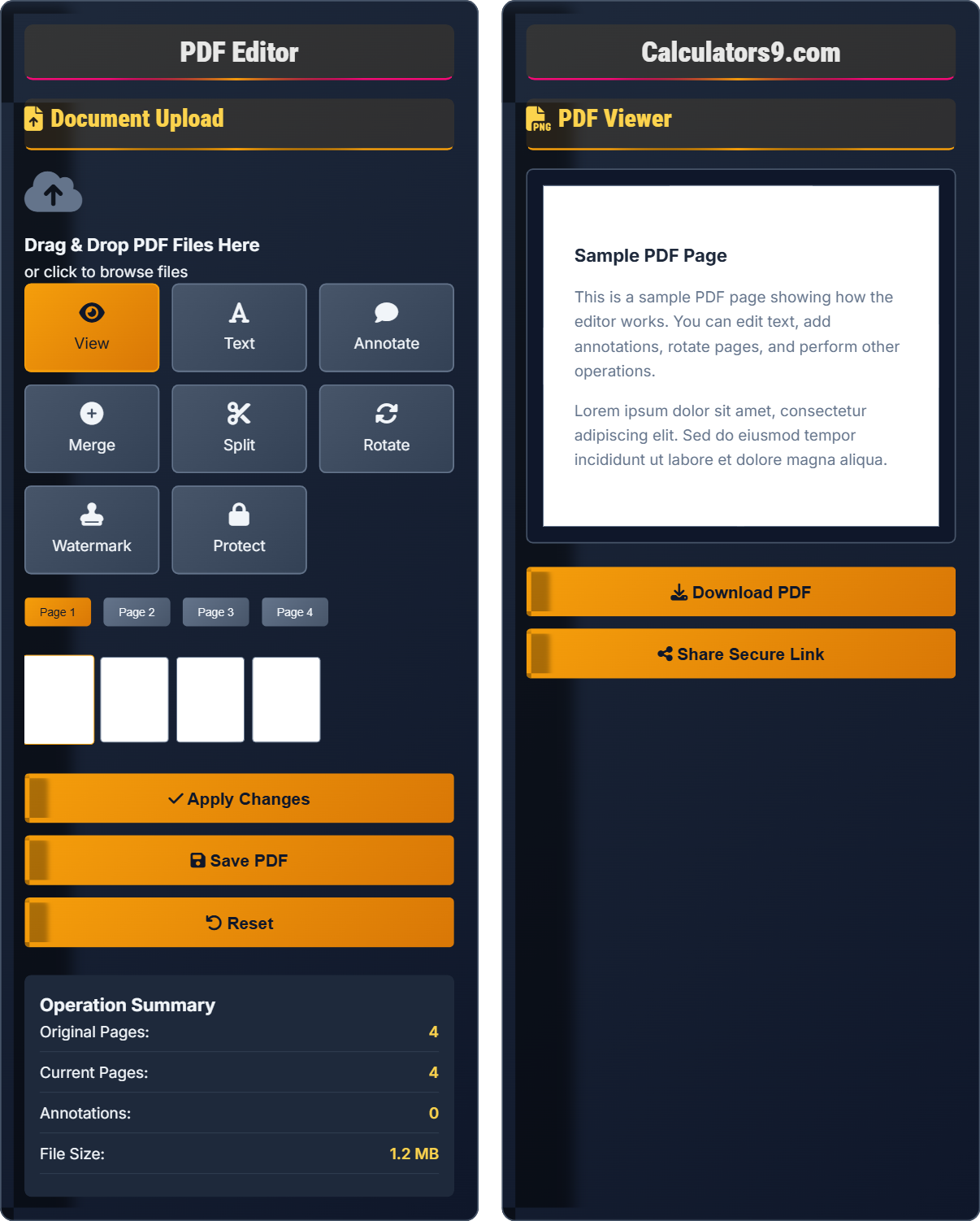
Drag & Drop PDF Files Here
or click to browse files
Text Editing
Annotation Tools
Merge PDFs
Upload additional PDFs to merge with the current document.
Split Options
Rotation Controls
Watermark Settings
Operation Summary
PDF Viewer
Sample PDF Page
This is a sample PDF page showing how the editor works. You can edit text, add annotations, rotate pages, and perform other operations.
Lorem ipsum dolor sit amet, consectetur adipiscing elit. Sed do eiusmod tempor incididunt ut labore et dolore magna aliqua.
Editing Capabilities
PDF editing allows modification of PDF content while maintaining document structure and formatting.
- Text editing and formatting
- Page manipulation (insert, delete, rotate)
- Annotation and markup tools
- Document merging and splitting
- Security and watermark features
- Always backup original documents
- Check formatting after editing
- Verify security settings post-editing
- Test PDF on multiple devices
Technical Specifications
Full PDF 1.7 support with compatibility for older versions and enhanced security features.
- Maximum file size: 50MB per document
- Up to 1000 pages per PDF
- Unlimited annotation layers
- Multiple document operations
- Protected PDFs may require password
- Complex layouts may need manual adjustment
- Some fonts may not embed properly
- OCR required for scanned documents
PDF Editing Quiz
Which of the following operations CANNOT be performed with a standard PDF editor?
The answer is C) Modifying embedded video content. Standard PDF editors cannot modify embedded multimedia content like videos or audio. While PDFs can contain video objects, editing these requires specialized software beyond standard PDF editing tools.
PDF editing capabilities depend on the complexity of the PDF and the editor's functionality. While modern editors can handle text, images, annotations, and page manipulations, embedded multimedia content is treated as binary data that cannot be modified without specialized tools. This limitation exists because video content is compressed using codecs that PDF editors don't decode.
PDF Object: Fundamental elements that make up PDF content including text, images, and multimedia
Embedded Content: External media files integrated into PDF structure
Binary Data: Raw data that requires specific decoders to interpret
• Text and images can be modified in PDFs
• Page operations are standard features
• Multimedia content has limited editability
• Extract multimedia separately if modification needed
• Replace entire multimedia objects rather than editing
• Verify multimedia compatibility before distribution
• Expecting full video editing within PDF editor
• Assuming all embedded content is editable
• Not checking multimedia functionality after editing
Explain how PDF editing affects security features and what precautions should be taken when editing protected documents.
PDF editing can affect security features in several ways:
Password Protection: Editing may remove or weaken existing passwords. Some editors preserve security, while others require unlocking before editing.
Permissions: Edit permissions (printing, copying, modifying) may be altered during editing, potentially reducing document security.
Digital Signatures: Editing signed documents invalidates digital signatures, requiring re-signing after modifications.
Encryption: Some editing processes may downgrade encryption strength if not handled properly.
Precautions: Always verify security settings after editing, re-apply passwords and permissions as needed, and ensure digital signatures are renewed if required.
PDF security operates at multiple layers: document-level encryption, permission restrictions, and digital signatures. When editing occurs, the document structure is modified, which can affect these security measures. Understanding these implications is crucial for maintaining document integrity and compliance requirements.
Document Encryption: Mathematical method of protecting PDF content from unauthorized access
Permission Restrictions: Settings that limit what users can do with a PDF
Digital Signature: Cryptographic verification of document authenticity and integrity
• Editing may invalidate security features
• Always re-apply security after editing
• Verify signature validity post-editing
• Keep original secured copies as backups
• Test security features after editing
• Document security changes for compliance
• Not re-applying security after editing
• Assuming edited documents maintain original security
• Forgetting to re-sign documents after modifications
A law firm needs to add a confidentiality watermark to 45 client contracts. Manual editing takes 8 minutes per document, but batch processing can handle 5 documents simultaneously with 12-minute processing time. How much time is saved using batch processing compared to manual editing?
Manual editing time: 45 documents × 8 minutes = 360 minutes
Batch processing: 45 documents ÷ 5 per batch = 9 batches
Time per batch = 12 minutes
Total batch time: 9 batches × 12 minutes = 108 minutes
Time saved: 360 - 108 = 252 minutes
Therefore, batch processing saves 252 minutes (4 hours and 12 minutes) compared to manual editing.
This example demonstrates the efficiency gains of batch processing for repetitive operations. The time savings come from parallel processing capabilities and reduced overhead per document. For large document sets, batch operations provide substantial efficiency improvements, though individual attention to each document is sacrificed.
Batch Processing: Executing the same operation on multiple documents simultaneously
Parallel Processing: Performing multiple operations at the same time
Operational Efficiency: Optimizing processes to reduce time and resource consumption
• Batch processing reduces per-document time
• Efficiency increases with larger batches
• Consider system resources for optimal batch sizes
• Group similar documents for batch operations
• Monitor system performance during large batches
• Schedule batch operations during off-peak hours
• Attempting too large batches for system capacity
• Not accounting for processing time variations
• Ignoring system resource limitations
A research team is reviewing a 200-page PDF document and needs to add comments to specific sections. They want to organize annotations by topic and ensure reviewers can easily navigate between related comments. How should they structure their annotation strategy?
Effective annotation strategy includes:
Color Coding: Assign specific colors to different topics (e.g., red for methodology, blue for results, green for conclusions).
Comment Labels: Use consistent labeling conventions like "[Methodology]" or "[Analysis]" at the beginning of comments.
Bookmark Creation: Create bookmarks for sections with heavy annotation to enable quick navigation.
Annotation Summary: Maintain a separate document mapping annotation locations to topics for easy reference.
Layer Management: Organize annotations by reviewer or topic in separate layers when possible.
This systematic approach ensures annotations remain organized and navigable despite the document's size.
Large document annotation requires systematic organization to maintain usability. Without proper structure, annotations become difficult to manage and navigate. The strategy balances individual commenting flexibility with organizational requirements for collaborative review.
Annotation Layer: Separate level for organizing different types of comments
Comment Threading: Organizing related comments in discussion threads
Document Navigation: Tools and methods for moving efficiently through documents
• Consistent annotation practices improve usability
• Color coding enhances visual organization
• Navigation aids are essential for large documents
• Establish annotation guidelines before starting
• Use consistent terminology in comments
• Create a legend for color codes and symbols
• Inconsistent annotation practices across team members
• Not planning annotation organization in advance
• Over-annotating which reduces readability
When editing PDFs created from different source applications, which factor most significantly impacts editing success?
The answer is B) Source application type. Different source applications embed content differently in PDFs. Word documents preserve text as selectable content, while Illustrator files may embed text as graphics. This affects editability and determines whether text can be modified or requires OCR.
PDF creation methods vary significantly between applications, affecting how content is stored. Text-based PDFs allow direct editing, while graphic-based PDFs require OCR or reconstruction. Understanding the source application helps predict editing challenges and select appropriate tools.
Text-Based PDF: Contains actual text that can be selected and edited
Graphic-Based PDF: Contains images of text that require OCR for editing
OCR: Optical Character Recognition for converting images to text
• Text-based PDFs are easier to edit than graphic-based
• Test editability before starting extensive work
• Use OCR tools for scanned documents
• Keep source files when possible
• Assuming all PDFs are equally editable
• Not identifying document type before editing
• Attempting text editing on graphic-based PDFs
FAQ
Q: Can I edit text in a PDF that was created from a scanned document?
A: PDFs created from scanned documents contain images of text rather than actual text content. To edit such documents, you need Optical Character Recognition (OCR) to convert the image-based text into selectable, editable text.
Our PDF editor includes OCR functionality that analyzes the scanned images and converts them to text. The accuracy depends on scan quality:
- High-resolution scans (300 DPI+) yield better OCR results
- Clean, black-and-white text is more accurately recognized
- Complex layouts or poor scan quality may require manual correction
- Specialized fonts or handwriting may not be recognized
After OCR processing, the document becomes fully editable with text selection, modification, and formatting capabilities.
Q: How does PDF editing affect document accessibility for users with disabilities?
A: PDF editing can significantly impact accessibility if not done properly:
Positive Impacts: Adding alt-text to images, structuring content with proper headings, and ensuring sufficient color contrast improve accessibility.
Negative Impacts: Removing existing accessibility tags, adding images without descriptions, or creating low-contrast text can reduce accessibility.
Best Practices:
- Maintain or enhance document structure (headings, lists, tables)
- Add alternative text for all meaningful images
- Preserve or improve color contrast ratios (4.5:1 minimum)
- Ensure logical reading order for assistive technologies
- Test with screen readers after editing
Modern PDF editors include accessibility checkers to help maintain compliance with WCAG guidelines during editing.