PDF to Word
Professional PDF to DOCX converter • Text extraction
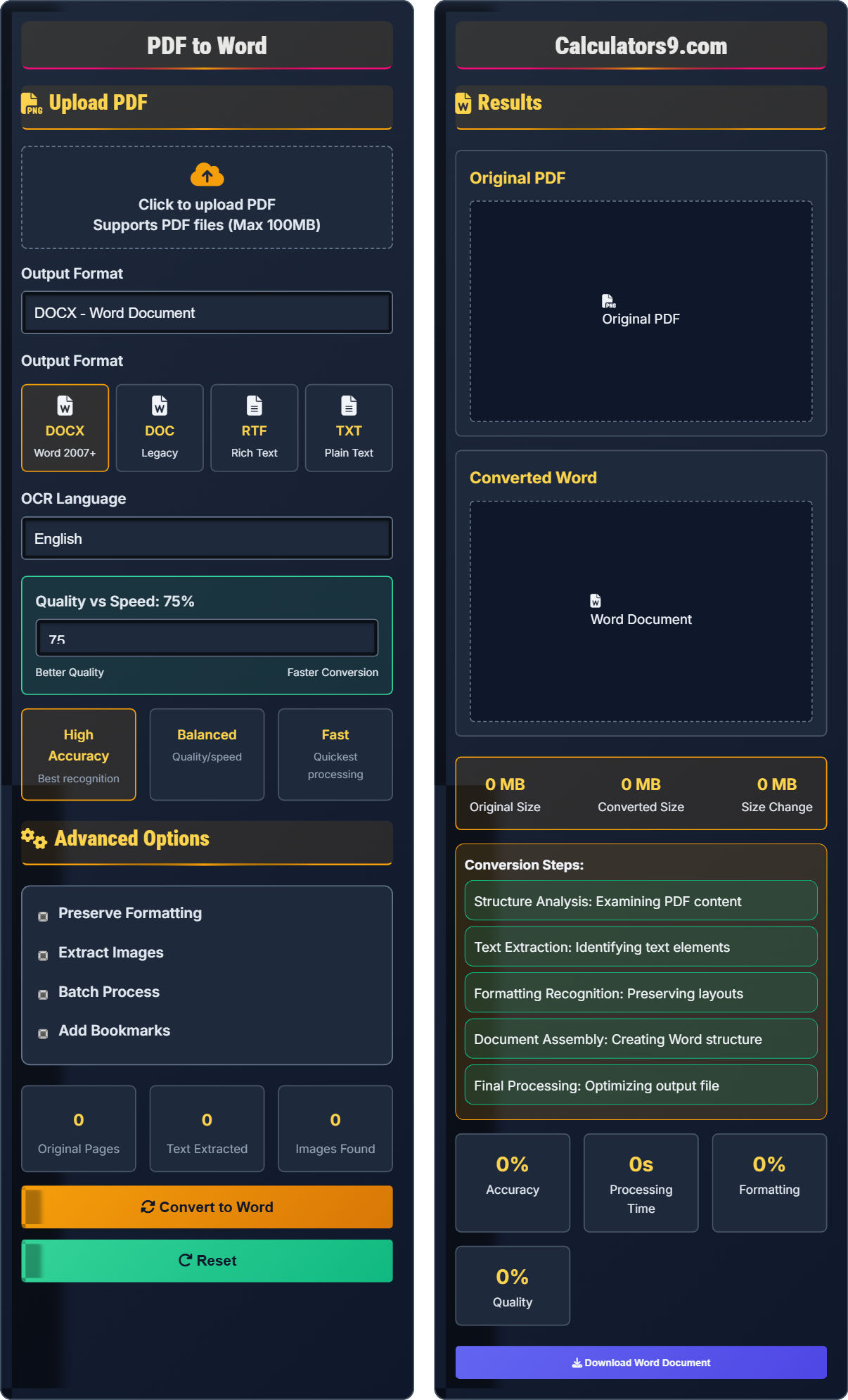
PDF to Word Conversion Process:
Show the toolPDF to Word conversion involves extracting text and formatting from PDF files and recreating them in Microsoft Word format. The process includes:
Key steps include:
- Analysis: Examining PDF structure and content
- Text Extraction: Identifying and extracting text elements
- Formatting: Preserving layouts and styles
- Assembly: Creating Word document structure
Accuracy: Modern tools achieve 95-99% accuracy for text-based PDFs.
OCR Support: For scanned documents, OCR technology extracts text.
Processing Time: Typically 1-5 minutes depending on file size and complexity.
Upload PDF
Advanced Options
Results
Original PDF
Converted Word
- Structure Analysis: Examining PDF content
- Text Extraction: Identifying text elements
- Formatting Recognition: Preserving layouts
- Document Assembly: Creating Word structure
- Final Processing: Optimizing output file
Comprehensive PDF to Word Conversion Guide
PDF to Word conversion is the process of extracting text, images, and formatting from PDF files and recreating them in Microsoft Word format. This allows for editing and modification of content that was originally in a fixed-layout PDF format.
Different approaches serve various conversion needs:
- Text-Based PDF: Direct text extraction and conversion
- Scanned PDF: OCR technology to recognize text
- Image-Based: Advanced image processing
- Hybrid: Combination of methods
Different output formats have unique characteristics:
- DOCX: Modern Word format, best compatibility
- DOC: Legacy format, broader compatibility
- RTF: Rich formatting, cross-platform
- TXT: Plain text, maximum simplicity
- For Scanned Documents: Use high-quality OCR settings
- For Tables: Manual cleanup may be required
- For Graphics: Extract images separately if needed
- For Formatting: Verify layout preservation
- Language Accuracy: Select correct OCR language
Conversion Fundamentals
Optical Character Recognition (OCR) is technology that converts images of text into machine-readable text, essential for converting scanned PDFs.
Accuracy % = (Correct Characters / Total Characters) × 100%
Processing Time ≈ File Size × Complexity Factor
- Text-based PDFs convert more accurately than scanned
- OCR accuracy depends on image quality
- Complex layouts may require manual adjustments
Optimization Strategies
Advanced algorithms analyze character patterns and context to accurately identify text elements.
- High Quality: Maximum accuracy, slower processing
- Balanced: Good quality/file size ratio
- Fast: Quicker conversion, potential quality loss
- DOCX preserves most formatting
- Plain text loses all formatting
- Complex documents may require manual cleanup
- OCR works best with clear, high-contrast text
PDF to Word Conversion Learning Quiz
Which factor has the greatest impact on OCR accuracy when converting scanned PDFs to Word?
The answer is B) Image resolution. OCR accuracy is directly dependent on the quality of the image being analyzed. Higher resolution images (measured in DPI - dots per inch) provide more detail for the OCR engine to recognize characters accurately. A minimum of 300 DPI is typically recommended for good OCR results, with 600 DPI providing better accuracy for complex documents.
This question tests understanding of the fundamental principle behind OCR technology. OCR works by analyzing pixel patterns in images to identify characters. The more pixels available to represent each character, the more accurately the OCR engine can distinguish between similar-looking characters. This demonstrates the relationship between image quality and text recognition accuracy.
OCR (Optical Character Recognition): Technology to convert image text to machine-readable text
DPI (Dots Per Inch): Measure of image resolution
Character Recognition: Process of identifying text elements in images
• Higher resolution = better OCR accuracy
• 300 DPI minimum for good results
• Image quality directly affects text recognition
• Scan documents at 300-600 DPI for best results
• Ensure good contrast between text and background
• Clean documents before scanning to remove smudges
• Using low-resolution scans for OCR
• Not considering image quality requirements
• Assuming all scanned documents convert equally
What is the primary difference between converting a text-based PDF and a scanned PDF to Word format?
The primary difference lies in the conversion process and accuracy. Text-based PDFs contain actual text elements that can be directly extracted and converted to Word format with high accuracy (typically 95-99%). Scanned PDFs are essentially images of text that require OCR technology to recognize and convert text, resulting in lower accuracy (typically 85-95%) and potentially requiring manual corrections. Text-based PDFs also preserve formatting better than scanned documents.
This question explores the fundamental distinction between two different types of PDFs and their conversion requirements. Understanding this difference is crucial for selecting appropriate conversion strategies and setting realistic expectations for conversion quality. The technical architecture of PDF files determines the approach needed for successful conversion.
Text-Based PDF: Contains actual text elements and vectors
Scanned PDF: Contains images of text pages
OCR Processing: Optical recognition of text in images
• Text-based PDFs convert more accurately
• Check if PDF is text-based before conversion
• Use appropriate OCR settings for scanned documents
• Expect manual cleanup for complex scanned documents
• Treating all PDFs as text-based
• Not adjusting OCR settings for scanned documents
• Expecting perfect accuracy from scanned conversions
A document manager needs to convert a 15-page scanned PDF (5MB) to Word format. The OCR process typically increases file size by 20-40% due to formatting information. Calculate the expected file size of the converted document and determine if this would be suitable for email attachment (assuming 25MB limit).
Expected file size range = Original size × (1 + size increase percentage)
Minimum expected size = 5MB × 1.20 = 6MB
Maximum expected size = 5MB × 1.40 = 7MB
The converted file will be between 6-7MB, which is well within the 25MB email limit. This makes the converted document suitable for email attachment, with plenty of room for additional content if needed.
This problem demonstrates the mathematical relationship in document conversion processes. The size increase occurs because Word format stores formatting information, font details, and structural elements that weren't present in the original PDF. Understanding these relationships helps in planning distribution methods and managing storage requirements.
File Size Increase: Additional data stored during conversion
Formatting Information: Layout and styling data in Word
Structural Elements: Document organization data
• Converted files typically larger than original
• Calculate expected sizes before conversion
• Consider compression for large converted files
• Plan distribution method accordingly
• Not accounting for size increase during conversion
• Ignoring distribution platform limitations
• Assuming converted files are smaller
An office manager needs to convert 30 scanned documents (average 10 pages each) from PDF to Word for editing. The OCR process takes 2 minutes per document. Calculate the total processing time and propose optimization strategies to reduce the overall time while maintaining quality.
Total processing time = 30 documents × 2 minutes per document = 60 minutes = 1 hour. Optimization strategies: (1) Use batch processing tools that can handle multiple documents simultaneously; (2) Upgrade hardware (faster CPU with more cores); (3) Use faster OCR engines for less critical documents; (4) Distribute processing across multiple machines; (5) Use cloud-based conversion services. With 4-core processing, time reduces to ~15-20 minutes.
This represents a classic workflow optimization problem in document management. When performing identical operations on multiple documents, automation becomes crucial for efficiency. Parallel processing techniques allow for more efficient resource utilization. Understanding computational complexity helps in planning large-scale document conversion operations.
Batch Processing: Automated processing of multiple documents
Parallel Processing: Executing multiple operations simultaneously
Computational Complexity: Relationship between input size and processing time
• Processing time scales linearly with document count
• Multi-threading can significantly reduce time
• Quality settings affect processing time
• Use batch processing when possible
• Plan large batches during off-peak hours
• Consider cloud processing for large jobs
• Not accounting for processing time in project planning
• Running large batches during peak hours
• Not utilizing available hardware resources efficiently
Which output format provides the best balance of formatting preservation and compatibility for converted PDF documents?
The answer is C) DOCX. DOCX format provides the best balance of formatting preservation and compatibility. It's the modern Word format that maintains complex layouts, fonts, images, and formatting while being supported by recent versions of Microsoft Word and many other applications. While RTF offers good cross-platform compatibility, DOCX preserves more formatting detail and is the standard for modern document editing.
This question tests knowledge of document format characteristics and their trade-offs. Each format has specific strengths: TXT loses all formatting but is universally readable, RTF preserves some formatting with good compatibility, DOC is legacy but widely supported, and DOCX offers the best modern features. Understanding these characteristics helps in selecting the appropriate format for specific needs.
DOCX: Modern Word document format with XML structure
Format Compatibility: Support across different applicationsFormatting Preservation: Maintaining original document appearance
• DOCX offers best formatting preservation
• TXT loses all formatting
• RTF provides cross-platform compatibility
• Use DOCX for modern Word editing
• Use RTF for cross-platform compatibility
• Use TXT for pure text extraction
• Using TXT format when formatting is important
• Not considering compatibility requirements
• Assuming all formats preserve formatting equally
FAQ
Q: What's the difference between converting PDF to DOCX and DOC format?
A: The key differences are:
- DOCX: Modern XML-based format, better formatting preservation
- DOC: Legacy binary format, broader compatibility
Mathematically, the file size relationship can be expressed as:
\( \text{DOCX Size} \approx \text{DOC Size} \times 0.7 \text{ to } 1.2 \)
DOCX typically offers better formatting preservation due to its XML structure, while DOC provides broader compatibility with older Word versions. For documents requiring complex formatting, DOCX is generally superior, but DOC may be preferred for maximum compatibility.
Q: How accurate is OCR technology for converting scanned PDFs to editable Word documents?
A: OCR accuracy varies based on document quality:
- High Quality: 95-99% accuracy (clean, high-resolution scans)
- Medium Quality: 85-95% accuracy (moderate resolution, some imperfections)
- Low Quality: 70-85% accuracy (poor resolution, smudges, poor contrast)
The accuracy can be quantified as:
\( \text{Accuracy} = \frac{\text{Correct Characters}}{\text{Total Characters}} \times 100\% \)
For optimal results, use high-resolution scans (300+ DPI) with good contrast and minimal noise. Modern OCR engines use machine learning to achieve higher accuracy, especially for common fonts and languages.