Split PDF
Professional PDF splitting • Page extraction
PDF Splitting Process:
Show the toolPDF splitting involves extracting specific pages or ranges from a PDF document to create separate files. The process includes:
Key steps include:
- Analysis: Examining PDF structure and page count
- Selection: Identifying pages to extract
- Extraction: Isolating selected pages
- Assembly: Creating new PDF files from extracted pages
File Sizes: Split files are typically proportional to original page count.
Page Limits: Most PDF readers support up to 50,000 pages.
Processing Time: Typically 1-5 minutes depending on file size and complexity.
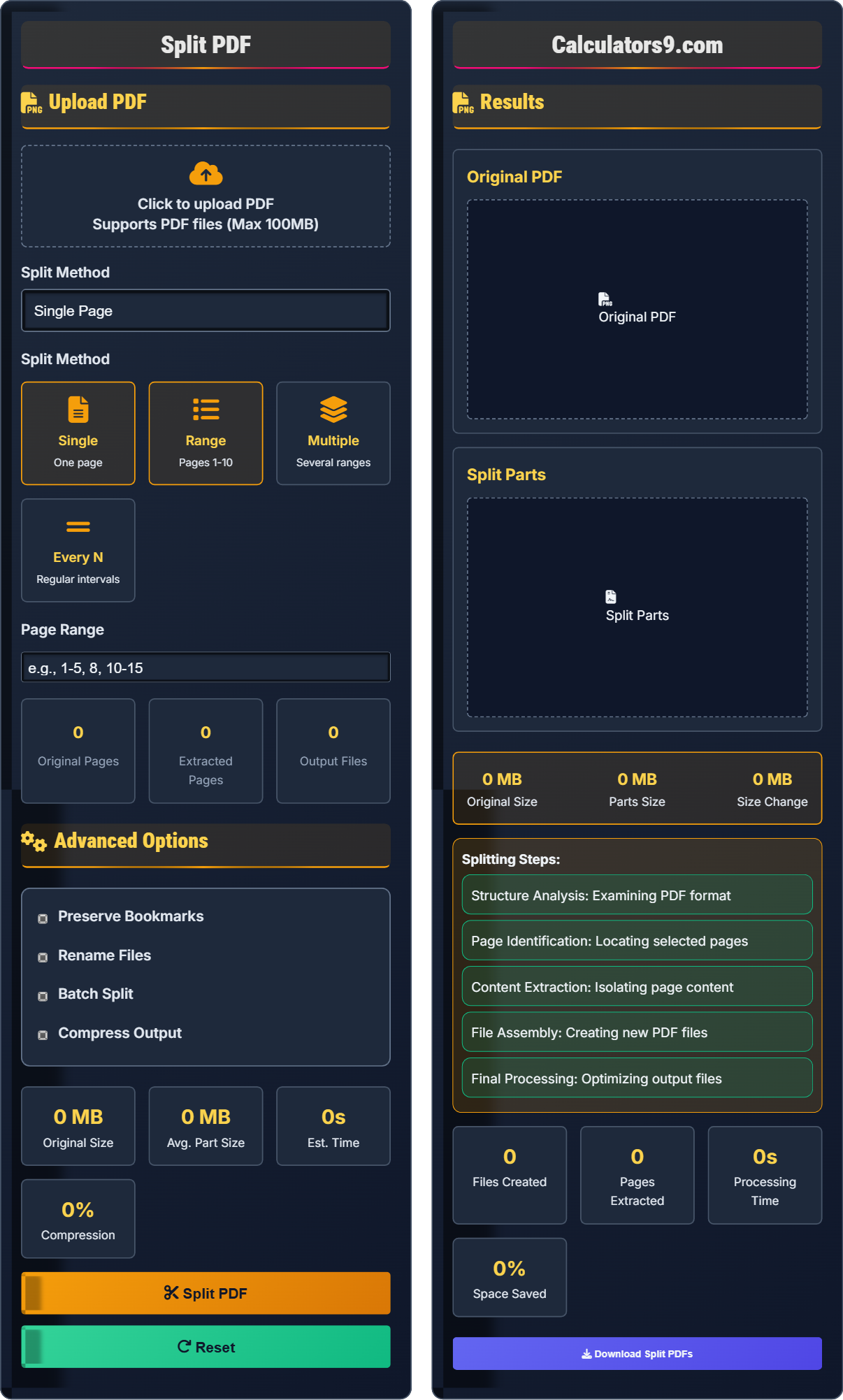
Upload PDF
Advanced Options
Results
Original PDF
Split Parts
- Structure Analysis: Examining PDF format
- Page Identification: Locating selected pages
- Content Extraction: Isolating page content
- File Assembly: Creating new PDF files
- Final Processing: Optimizing output files
Comprehensive PDF Splitting Guide
PDF splitting is the process of extracting specific pages or ranges from a PDF document to create separate files. This allows for efficient organization and distribution of specific content from larger documents.
Different approaches serve various PDF splitting needs:
- Single Page: Extract individual pages
- Page Range: Extract continuous page ranges
- Multiple Ranges: Extract several non-contiguous ranges
- Regular Intervals: Split every N pages
Various factors affect PDF splitting results:
- Security: Password-protected PDFs may require special handling
- Fonts: Embedded fonts ensure consistent appearance
- Images: High-resolution images affect file sizes
- Bookmarks: May need to be preserved or recreated
- For Reports: Split by chapters or sections
- For Presentations: Extract individual slides
- For Manuals: Separate by topics or chapters
- For Contracts: Isolate specific clauses
- Page Selection: Extract only necessary content
Splitting Fundamentals
PDF documents contain objects organized in a tree structure, including pages, fonts, images, and metadata that must be properly handled during splitting.
Pages per File = Total Pages / Number of Files
File Size ≈ (Pages per File / Total Pages) × Original Size
- Split files maintain original formatting
- Security restrictions may carry over
- Large files take longer to process
Optimization Strategies
PDF extraction efficiency depends on document complexity and selected page ranges.
- Quick split: Extract pages without optimization
- Optimized split: Compress for smaller size
- Secure split: Maintain security features
- Extract similar document types together
- Consider final file sizes
- Preserve important formatting
- Check for password protection
PDF Splitting Learning Quiz
Which splitting method would be most appropriate for extracting pages 1-5, 10-15, and 20-25 from a 30-page document?
The answer is C) Multiple Ranges. This method allows you to specify several non-contiguous page ranges in a single operation. For pages 1-5, 10-15, and 20-25, you would enter "1-5, 10-15, 20-25" to extract these specific sections while skipping the pages in between.
This question tests understanding of different splitting methods and their appropriate applications. Single page extraction would require multiple operations, page range only works for contiguous sections, and every N pages splits at regular intervals. Multiple ranges is specifically designed for extracting several non-contiguous sections.
Contiguous Range: Continuous sequence of pages
Non-contiguous: Separate page sections
Multiple Ranges: Several page selections in one operation
• Multiple ranges handle non-contiguous sections
• Page range for continuous sections
• Single page for individual extraction
• Use commas to separate ranges
• Specify single pages as needed
• Plan extractions before starting
• Using single page method for multiple sections
• Not understanding range notation
• Assuming all methods support non-contiguous ranges
What happens to password protection when you split a password-protected PDF?
When splitting a password-protected PDF, the resulting split files typically retain the same security restrictions as the original document. The password protection is preserved in each extracted file, meaning users will need to provide the password to open any of the split files. This ensures that security measures remain intact after the splitting operation.
This question explores the relationship between PDF security features and splitting operations. PDF security is implemented at the document level, so when pages are extracted, the security metadata is typically carried over to the new documents. This preserves the intended access controls and prevents unauthorized access to sensitive content.
Password Protection: Security feature restricting PDF access
Security Transfer: Carrying restrictions to split files
Access Controls: Measures limiting document usage
• Security restrictions transfer to split files
• Unlock before splitting if possible
• Check tool capabilities for protected files
• Consider security implications of splitting
• Assuming splitting removes security
• Not considering password requirements
• Expecting unprotected output from protected input
A document reviewer needs to split a 200-page PDF (40 MB) into 4 equal parts. Calculate the expected size of each part and determine if this would be suitable for email attachment (assuming 25MB limit).
Pages per part = 200 pages ÷ 4 parts = 50 pages per part. Expected size per part = 40 MB ÷ 4 = 10 MB per part. Each 10 MB file is well below the 25MB email limit, making all parts suitable for email attachment. The split files would be 25% of the original size each, which is manageable for distribution.
This problem demonstrates the mathematical relationship in PDF splitting operations. The size of split files is approximately proportional to the number of pages in each part. Understanding these relationships helps in planning distribution methods and managing file size constraints.
Proportional Size: File size relative to page count
Distribution Constraints: Platform-specific file size limits
File Size Management: Controlling output file sizes
• Split size ≈ (Part pages / Total pages) × Original size
• Calculate expected sizes before splitting
• Plan number of parts based on limits
• Consider compression options
• Not calculating expected file sizes
• Ignoring platform distribution limits
• Assuming all split files will be small
A legal firm needs to split 15 documents, each averaging 100 pages (20 MB). The splitting process takes 2 minutes per document. Calculate the total processing time and propose strategies to optimize the workflow.
Total processing time = 15 documents × 2 minutes per document = 30 minutes. Optimization strategies: (1) Use batch processing tools that can handle multiple documents simultaneously; (2) Upgrade hardware (faster CPU with more cores); (3) Use faster processing algorithms; (4) Distribute processing across multiple machines; (5) Use cloud-based splitting services. With 4-core processing, time reduces to ~8 minutes.
This represents a classic workflow optimization problem in document management. When performing identical operations on multiple documents, automation becomes crucial for efficiency. Parallel processing techniques allow for more efficient resource utilization. Understanding computational complexity helps in planning large-scale document operations.
Batch Processing: Automated processing of multiple documents
Parallel Processing: Executing multiple operations simultaneously
Workflow Optimization: Improving efficiency of document operations
• Processing time scales linearly with document count
• Multi-threading can significantly reduce time
• Batch processing reduces manual work
• Use batch processing when possible
• Plan large batches during off-peak hours
• Consider cloud processing for large jobs
• Not accounting for processing time in project planning
• Running large batches during peak hours
• Not utilizing available hardware resources efficiently
Which PDF feature is most likely to be preserved in split files?
The answer is A) Embedded fonts. Embedded fonts are preserved in split files because they are stored as part of the PDF's font resources and are independent of page content. Interactive forms may be split incorrectly, digital signatures are typically invalidated by splitting, and bookmarks may not be properly maintained depending on the splitting method used.
This question tests knowledge of PDF compatibility and feature preservation during splitting operations. Embedded fonts are document-level resources that are copied to split files, while other features like signatures and bookmarks are more closely tied to the document structure and may be affected by splitting operations.
Embedded Fonts: Font resources stored within the PDF
Feature Preservation: Maintaining functionality after operations
Document Resources: Assets stored at document level
• Embedded fonts are preserved in splits
• Digital signatures are invalidated by splitting
• Bookmarks may require reconstruction
• Check font preservation after splitting
• Consider re-signing split documents
• Reconstruct bookmarks if needed
• Assuming all features preserve automatically
• Not checking document integrity after splitting
• Expecting signatures to remain valid
FAQ
Q: Will splitting a PDF preserve digital signatures and security features?
A: The preservation of digital signatures and security features depends on the splitting process:
- Digital Signatures: Typically invalidated during splitting
- Security Settings: May be preserved or removed
- Encryption: Usually maintained if compatible
Mathematically, the signature verification process checks document integrity:
\( \text{Signature Valid} = \text{Hash(Document)} == \text{Decrypted Signature Hash} \)
Since splitting changes the document content, the hash values no longer match, invalidating the signature. For legal documents requiring signatures, it's often better to split documents before signing.
Q: How can I split a PDF into equal parts by page count?
A: To split a PDF into equal parts by page count:
- Calculate Pages per Part: Total pages ÷ Number of parts
- Use "Every N Pages" Method: Set interval to pages per part
- Handle Remainder: Last part may have fewer pages
For a 100-page document into 3 parts: 100 ÷ 3 = 33.33, so split every 33 pages (parts of 33, 33, and 34 pages). The mathematical relationship is:
\( \text{Pages per Part} = \lceil \frac{\text{Total Pages}}{\text{Number of Parts}} \rceil \)