Word to PDF Converter
Free online conversion • Format preservation
Word to PDF Conversion Process:
Convert FilesConverting Word documents to PDF involves preserving formatting, fonts, images, and layout while creating a universally compatible, non-editable format. The conversion process maintains document integrity while ensuring cross-platform compatibility.
Key steps in Word to PDF conversion:
- Document parsing and structure analysis
- Font embedding and formatting preservation
- Image compression and optimization
- Security feature application (if enabled)
- Final PDF generation with proper encoding
Benefits of PDF format:
- Universal compatibility across devices and platforms
- Document security and tamper-proof nature
- File size optimization while maintaining quality
- Professional appearance suitable for business use
- Searchable text and accessibility features
Modern conversion tools preserve original formatting while optimizing file size and ensuring accessibility compliance.
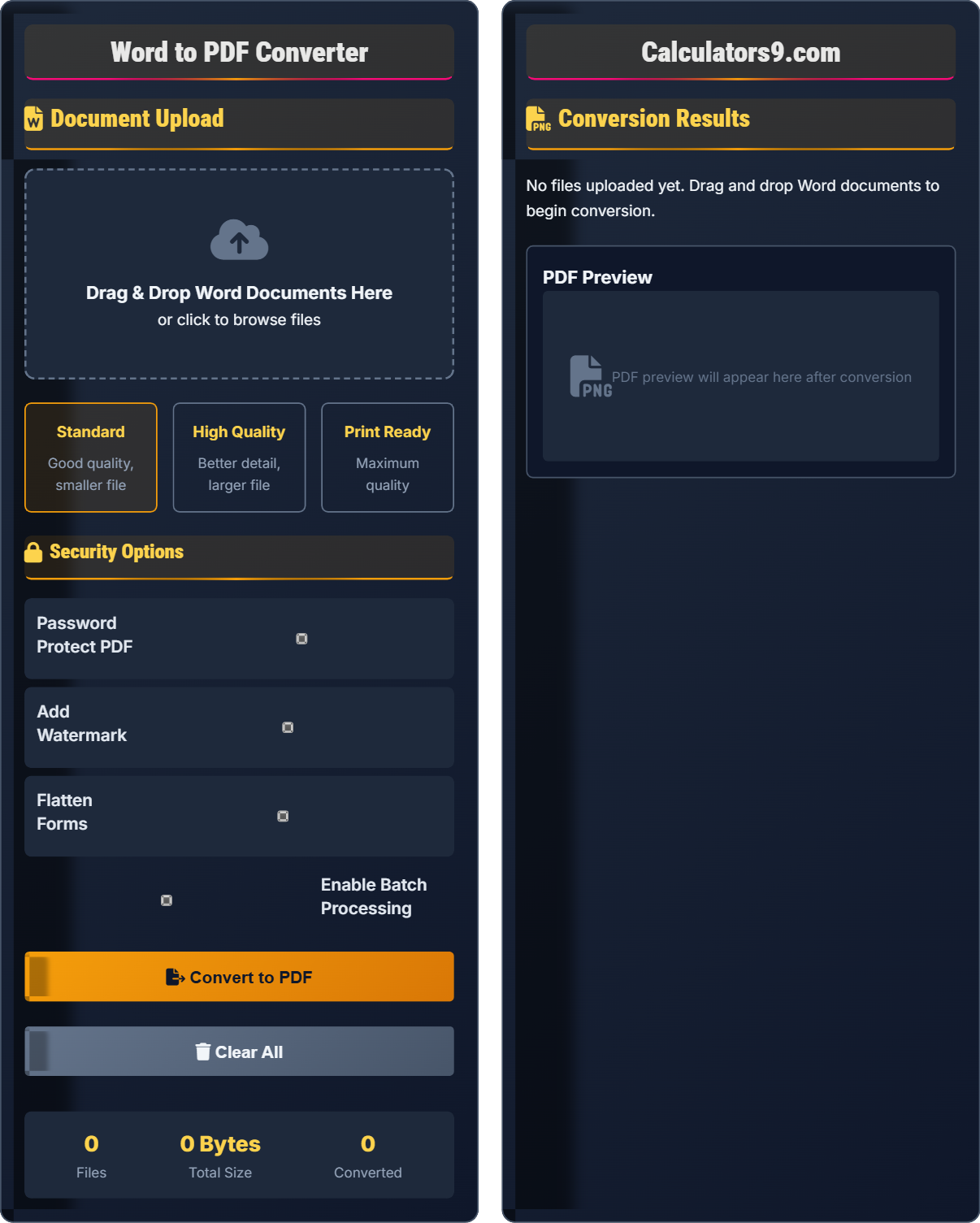
Document Upload
Drag & Drop Word Documents Here
or click to browse files
Conversion Results
No files uploaded yet. Drag and drop Word documents to begin conversion.
PDF Preview
PDF preview will appear here after conversion
Conversion Benefits
PDF format ensures document integrity across all platforms and prevents unauthorized editing while maintaining professional appearance.
- Preserves original formatting and fonts
- Optimizes file size for sharing
- Ensures cross-platform compatibility
- Provides security options
- Maintains image quality
- Check formatting before conversion
- Use appropriate quality settings
- Add security for sensitive documents
- Verify PDF quality after conversion
Technical Specifications
Supports DOC, DOCX, RTF, and other Word-compatible formats with full formatting preservation.
- Standard: Optimized for general use
- High Quality: Preserves image details
- Print Ready: Maximum resolution output
- Maximum file size: 50MB per document
- Batch processing limit: 10 files
- Processing time varies by file size
- Complex layouts may need review
Document Conversion Quiz
Which of the following is the PRIMARY advantage of converting Word documents to PDF format?
The answer is B) Cross-platform compatibility. PDF format ensures that documents look identical regardless of the operating system, software version, or device used to open them. This universal compatibility is the primary advantage of PDF format.
PDF (Portable Document Format) was specifically designed to address the challenge of document consistency across different computing environments. Unlike Word documents, which can render differently on various systems, PDFs maintain their exact formatting, fonts, and layout. This makes them ideal for professional documents, contracts, and presentations where consistency is critical.
PDF: Portable Document Format - a file format developed by Adobe to present documents consistently across platforms
Cross-platform: Functionality that works identically across different operating systems
Document Integrity: Preservation of original formatting, fonts, and layout during file conversion
• PDFs maintain consistent appearance across all devices
• Original formatting is preserved during conversion
• PDFs are non-editable without special software
• Use PDF for final versions of important documents
• Check PDF appearance before sharing
• Consider security features for sensitive content
• Assuming PDFs are editable like Word documents
• Not verifying formatting after conversion
• Forgetting to add security for confidential documents
Explain the differences between Standard, High Quality, and Print Ready conversion settings when converting Word to PDF, including their impact on file size and output quality.
Standard quality: Optimizes file size while maintaining readable text and basic image quality. Typically compresses images to 150 DPI, resulting in smaller files suitable for email and general sharing. File size is usually 25-50% of original.
High Quality: Preserves more image detail and text clarity with minimal compression. Images are maintained at 300 DPI, resulting in larger files with better visual quality. Suitable for professional presentations and detailed graphics.
Print Ready: Maximum resolution output (typically 300+ DPI) with minimal compression. Preserves all formatting, fonts, and image quality for professional printing. Results in largest file sizes but ensures highest output quality for commercial printing.
Quality settings control the compression algorithms and resolution parameters used during PDF creation. Higher quality settings preserve more detail but require more storage space. The choice depends on the intended use: screen viewing, general sharing, or professional printing. Understanding these trade-offs helps optimize both file size and output quality for specific needs.
DPI: Dots Per Inch - measurement of spatial printing or image resolution
Compression: Reducing file size by eliminating redundant data
File Optimization: Balancing quality and size for efficient storage and transmission
• Higher quality = larger file size
• Standard quality suitable for most purposes
• Print ready essential for commercial printing
• Use Standard for email attachments
• Use High Quality for presentations
• Use Print Ready for final printing
• Using Print Ready for email (unnecessarily large files)
• Using Standard quality for detailed graphics
• Not considering recipient's bandwidth limitations
A marketing team needs to convert 25 Word documents to PDF for a client presentation. Individual conversion takes 3 minutes per document, but batch processing can handle 5 documents simultaneously with 4-minute processing time. How much time is saved using batch processing compared to individual conversion?
Individual conversion time: 25 documents × 3 minutes = 75 minutes
Batch processing: 25 documents ÷ 5 per batch = 5 batches
Time per batch = 4 minutes
Total batch time: 5 batches × 4 minutes = 20 minutes
Time saved: 75 - 20 = 55 minutes
Therefore, batch processing saves 55 minutes compared to individual conversion.
This example demonstrates the efficiency of batch processing for handling multiple documents. Instead of processing each document sequentially, batch processing handles multiple documents in parallel or optimized groups. The time savings become significant when dealing with large numbers of documents, making batch processing ideal for workflow automation.
Batch Processing: Processing multiple documents together in a single operation
Parallel Processing: Executing multiple operations simultaneously
Workflow Efficiency: Optimizing processes to reduce time and effort
• Batch processing reduces per-document processing time
• Efficiency increases with larger batch sizes
• Consider system resources for optimal batch sizes
• Group similar documents for batch processing
• Monitor system performance during large batches
• Schedule batch processing during off-peak hours
• Attempting too large batches for system capacity
• Not considering processing time variations
• Ignoring system resource limitations
A legal firm needs to convert sensitive contract documents to PDF with security features. They want password protection, watermarks, and restricted permissions. Explain how to implement these security measures during Word to PDF conversion and the benefits of each.
Password Protection: Requires a password to open the PDF file, preventing unauthorized access. Implementation involves setting a strong password during conversion that only authorized recipients know.
Watermark: Adds visible text (like "CONFIDENTIAL") over document content to indicate sensitivity. Implemented during conversion by specifying watermark text and positioning.
Restricted Permissions: Prevents copying, printing, or editing the document. Applied during PDF creation by setting specific permission flags.
Combined benefits: Multi-layered security approach protecting sensitive legal documents from unauthorized access and distribution.
Security in PDF conversion involves multiple layers of protection working together. Password protection controls access, watermarks provide visual identification of sensitivity, and permission restrictions prevent unauthorized actions. This layered approach ensures that sensitive documents remain protected even if they are shared outside secure networks.
Security Layers: Multiple protection mechanisms applied together
Permission Flags: Settings that restrict specific PDF functions
Access Control: Mechanisms that regulate who can view or modify documents
• Combine multiple security measures for better protection
• Use strong passwords for sensitive documents
• Test security features before distribution
• Use corporate password policies for consistency
• Add watermarks to indicate document classification
• Document security settings for future reference
• Using weak passwords for sensitive documents
• Not testing security features before sharing
• Forgetting to enable all desired security options
When converting Word documents to PDF, which of the following represents the correct relationship between quality settings and file characteristics?
The answer is B) Higher quality = larger file size. Higher quality settings preserve more detail, use less compression, and maintain higher resolution images, resulting in larger file sizes. Standard quality optimizes for smaller size, while print-ready quality maximizes detail preservation.
This fundamental principle of digital document processing reflects the trade-off between quality and efficiency. Higher quality settings store more data per page, include higher resolution images, and use less aggressive compression algorithms. Understanding this relationship helps users make informed decisions based on their specific needs for quality versus file size constraints.
Compression Ratio: Relationship between original and compressed file sizes
Resolution Trade-off: Balance between image quality and file size
Data Density: Amount of information stored per unit of file size
• Quality and file size are inversely related
• Choose settings based on intended use
• Consider both storage and transmission needs
• Test different settings for important documents
• Consider recipient's technical capabilities
• Balance quality with practical constraints
• Assuming higher quality is always better
• Not considering file size limitations
• Forgetting to verify output quality
FAQ
Q: Will my Word document formatting be preserved when converted to PDF?
A: Yes, modern Word to PDF converters preserve most formatting including fonts, colors, images, tables, and layout. However, complex elements like advanced WordArt, embedded objects, or macros may not translate perfectly.
The conversion process captures the document's visual representation at the time of conversion. To ensure formatting preservation:
- Review your document in Print Layout view before conversion
- Test conversion with a sample document first
- Use high-quality settings for documents with detailed formatting
- Check PDF output immediately after conversion
Most professional converters maintain 95%+ formatting accuracy for standard Word documents.
Q: How secure are PDFs created from Word documents?
A: PDFs provide multiple layers of security for converted documents:
Format Security: PDFs are read-only by default, preventing accidental edits that could alter document content.
Encryption Options: PDFs support password protection (40-bit to 256-bit AES encryption) that restricts access to authorized users.
Permission Controls: You can disable printing, copying, editing, and text extraction through permission settings.
Integrity Verification: PDFs maintain a consistent checksum that verifies document hasn't been altered since creation.
For maximum security, combine password protection with permission restrictions and consider digital signatures for authentication. Always verify security settings before distributing sensitive documents.