Frame Rate Calculator
Photography & Video Creative Tool • 2026 Edition
Frame Rate Formulas:
Show the calculator\( \text{Total Frames} = \text{FPS} \times \text{Duration (seconds)} \)
\( \text{Shutter Speed} = \frac{1}{2 \times \text{FPS}} \)
\( \text{Playback Rate} = \frac{\text{Recorded FPS}}{\text{Playback FPS}} \)
Where:
- FPS = Frames Per Second
- Shutter Speed = Exposure time per frame
- Playback Rate = Speed multiplier for slow/fast motion
For cinematic look: Shutter Speed = 1/(2 × FPS) rule
For slow motion: Record at higher FPS, play back at lower FPS
For time-lapse: Record at lower FPS, play back at higher FPS
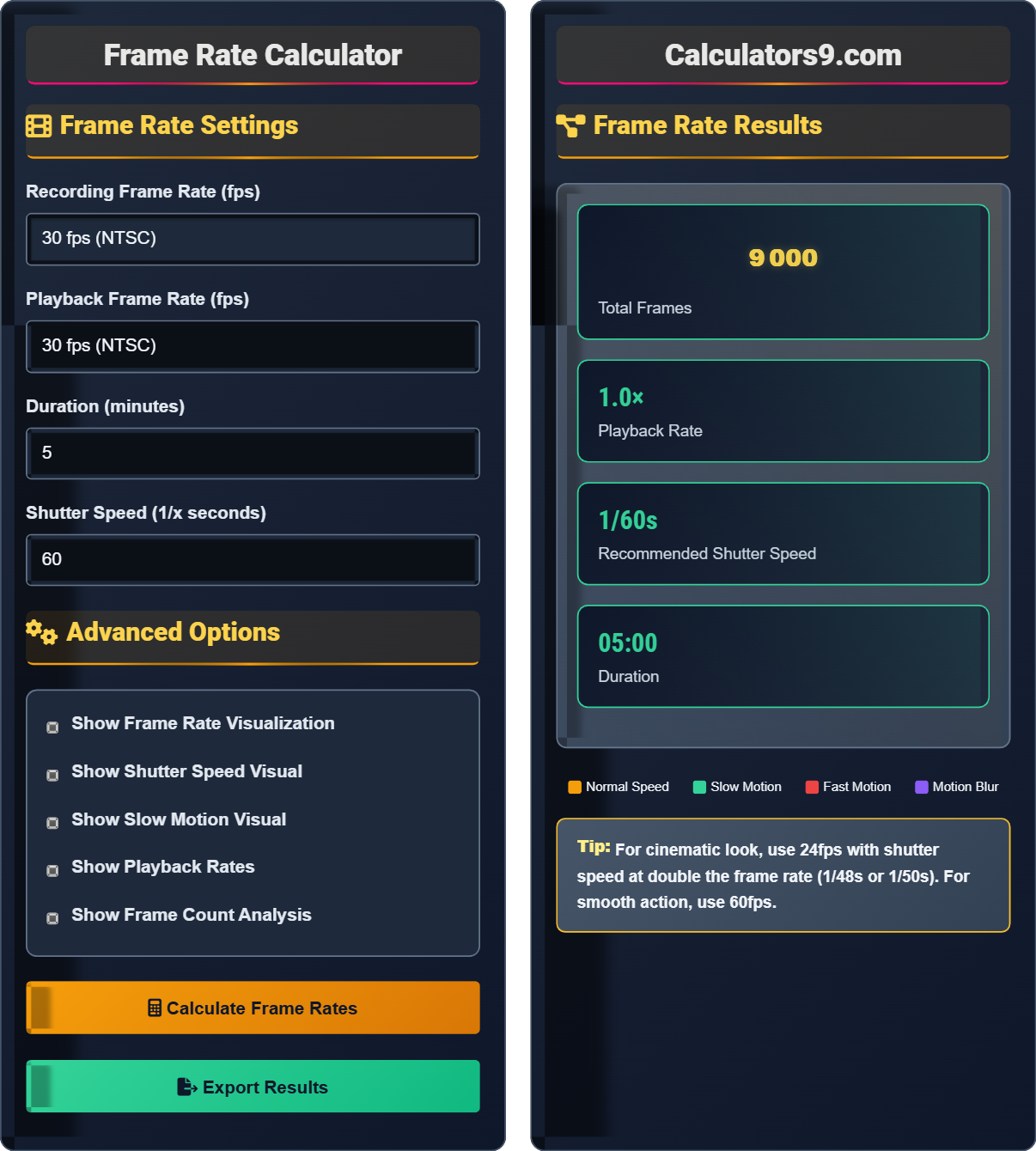
Example: Recording at 60fps, playing back at 30fps creates 2× slow motion
Shutter speed for 30fps: 1/(2 × 30) = 1/60 second
For 5 minutes at 30fps: 30 × 300 = 9,000 total frames
Frame Rate Settings
Advanced Options
Frame Rate Results
Frame Rate Fundamentals
Frame rate refers to the number of individual frames displayed per second in a video. It's measured in frames per second (fps). Higher frame rates create smoother motion, while lower frame rates can create a choppy or cinematic effect. Standard frame rates include 24fps (cinema), 30fps (television), and 60fps (smooth motion).
\( \text{Total Frames} = \text{FPS} \times \text{Duration (seconds)} \)
\( \text{Shutter Speed} = \frac{1}{2 \times \text{FPS}} \)
\( \text{Playback Rate} = \frac{\text{Recorded FPS}}{\text{Playback FPS}} \)
- 24fps = Cinematic film look
- 30fps = Standard television
- 60fps = Smooth motion
- Shutter rule: 1/(2×FPS) for natural motion blur
Creative Applications
Motion blur is created by exposing each frame for a certain duration. The 180° shutter rule suggests setting the shutter speed to double the frame rate for natural-looking motion blur. For 30fps, use 1/60s shutter speed.
- Slow Motion: Record high FPS, playback low FPS
- Time-lapse: Record low FPS, playback high FPS
- Cinematic: 24fps with proper shutter speed
- Smooth Action: 60fps or higher
- Stylized Look: Vary frame rates intentionally
- Higher FPS = more storage required
- Consider display capabilities
- Match frame rates for editing
- Power consumption increases with FPS
Frame Rate Learning Quiz
Which frame rate is traditionally used for cinema films to achieve the classic cinematic look?
The answer is B) 24 fps. The 24 fps frame rate has been the standard for cinema since the late 1920s when sound was introduced to films. This rate provides a distinctive cinematic motion blur and visual quality that audiences associate with movies. The 180° shutter rule (shutter speed = 1/48s for 24fps) creates the characteristic motion blur that contributes to the cinematic look.
The 24 fps standard emerged from practical considerations in early cinema. Film projectors needed to run at a consistent speed for audio synchronization, and 24 fps provided enough frames to create smooth motion while minimizing film stock costs. The slight motion blur at 24 fps became associated with the "film look" that distinguishes cinema from television.
Frame Rate: The number of individual frames displayed per second in a video
180° Shutter Rule: Setting shutter speed to double the frame rate for natural motion blur
Cinematic Look: The visual quality associated with traditional film production
• 24 fps = Cinematic film look
• 30 fps = Television broadcast standard
• 60 fps = Smooth motion, gaming
• Use 24 fps for narrative films
• Consider 30 fps for documentaries
• Use 60 fps for action sequences
• Using high frame rates for cinematic content
• Not considering the 180° shutter rule
• Mismatching frame rates in editing
Calculate the total number of frames in a 10-minute video recorded at 30 fps. Also calculate the recommended shutter speed using the 180° rule. Show your work.
Step 1: Convert duration to seconds
10 minutes = 10 × 60 = 600 seconds
Step 2: Calculate total frames
Total Frames = FPS × Duration (seconds)
Total Frames = 30 × 600 = 18,000 frames
Step 3: Calculate recommended shutter speed
Using the 180° rule: Shutter Speed = 1/(2 × FPS)
Shutter Speed = 1/(2 × 30) = 1/60 seconds
Therefore, a 10-minute video at 30 fps contains 18,000 frames, and the recommended shutter speed is 1/60 seconds.
This calculation demonstrates the fundamental relationship between frame rate, duration, and total frames. The 180° shutter rule is crucial for achieving natural motion blur. At 30 fps, a 1/60 second shutter speed means each frame is exposed for exactly half the time between frames, creating the characteristic motion blur that makes video look natural to human perception.
Total Frames: The number of individual images in a video sequence
180° Shutter Rule: Shutter speed equals double the frame rate
Exposure Time: The duration each frame is captured
• Total Frames = FPS × Duration (seconds)
• Shutter Speed = 1/(2 × FPS)
• Duration must be in seconds for calculations
• Always convert minutes to seconds for calculations
• The 180° rule creates natural motion blur
• Faster shutter speeds freeze motion
• Forgetting to convert minutes to seconds
• Applying shutter rule incorrectly
• Confusing FPS with shutter speed units
Sarah records a 30-second action sequence at 120 fps for slow-motion effect. She plans to play it back at 30 fps. Calculate the playback duration and the slow-motion factor. How long will the slow-motion clip appear when played back at 30 fps?
Step 1: Calculate total frames recorded
Total Frames = 120 fps × 30 seconds = 3,600 frames
Step 2: Calculate playback duration
Playback Duration = Total Frames / Playback FPS
Playback Duration = 3,600 / 30 = 120 seconds = 2 minutes
Step 3: Calculate slow-motion factor
Slow-motion Factor = Record FPS / Playback FPS
Slow-motion Factor = 120 / 30 = 4×
Therefore, the 30-second action sequence recorded at 120 fps will play back for 2 minutes at 30 fps, creating a 4× slow-motion effect.
This demonstrates the principle of slow motion: recording at a higher frame rate than playback. The camera captures more information (frames) than the display shows per second, so the same action takes longer to play back. This technique is essential for capturing fast action like sports, explosions, or nature phenomena in detail.
Slow Motion: Playing back video at a slower rate than it was recorded
Time Dilation: The effect of extending time through frame rate manipulation
Frame Interpolation: Creating intermediate frames to smooth slow motion
• Slow Motion: Record FPS > Playback FPS
• Time-lapse: Record FPS < Playback FPS
• Slow Factor = Record FPS / Playback FPS
• Higher record FPS = more extreme slow motion
• Consider lighting for high frame rates
• Plan for extra storage with high FPS
• Confusing record and playback frame rates
• Not accounting for storage requirements
• Miscalculating the slow-motion factor
David is filming a documentary interview at 30 fps. He wants natural motion blur for conversation scenes but sharp motion for quick head movements. What shutter speeds should he use for each situation? Calculate both and explain the difference in visual effects.
Step 1: Calculate cinematic shutter speed (natural blur)
Using 180° rule: Shutter Speed = 1/(2 × 30) = 1/60 seconds
Step 2: Calculate sharp motion shutter speed
For sharp motion, use faster shutter: 1/120 seconds or faster
Step 3: Calculate motion blur percentages
At 1/60s: 100% of frame interval exposed = maximum natural blur
At 1/120s: 50% of frame interval exposed = reduced blur
Visual Effects:
• 1/60s shutter: Natural motion blur, cinematic look, smooth motion
• 1/120s shutter: Crisper motion, more frozen action, less blur
Recommendation: Use 1/60s for natural conversation, 1/120s for quick movements.
Shutter speed controls motion blur independently of frame rate. Slower shutter speeds (like 1/60s at 30fps) allow more motion blur, creating a natural, cinematic feel. Faster shutter speeds (like 1/120s at 30fps) freeze motion, which can be desirable for fast action but may look unnatural for normal conversation. The key is matching shutter speed to the desired visual effect.
Motion Blur: The smearing of moving objects due to exposure time
Exposure Time: How long the sensor is exposed to light
Temporal Resolution: The ability to distinguish events in time
• Slower shutter = more motion blur
• Faster shutter = sharper motion
• 180° rule creates natural blur
• Match shutter to subject movement
• Consider lighting limitations
• Test different speeds for creative effect
• Using same shutter speed for all situations
• Ignoring the 180° rule
• Not considering lighting constraints
What happens when you record video at 60 fps and play it back at 30 fps?
The answer is C) The video plays at 0.5× speed (slow motion). When you record at a higher frame rate (60 fps) than playback (30 fps), you have more frames than needed for the playback duration. This creates a slow-motion effect. The calculation is: Playback Rate = Record FPS / Playback FPS = 60/30 = 2, meaning the action takes 2× longer to play, resulting in 0.5× speed.
This demonstrates the fundamental principle of temporal manipulation in video. Recording at higher frame rates captures more detail per second of real time. When played back at standard rates, the same amount of real-world action is stretched across more playback time, creating slow motion. The inverse is true for time-lapse effects.
Temporal Manipulation: Changing the relationship between recording and playback time
Slow Motion: Playing back video slower than it was recorded
Time-lapse: Playing back video faster than it was recorded
• Record FPS > Playback FPS = Slow Motion
• Record FPS < Playback FPS = Time-lapse
• Record FPS = Playback FPS = Normal Speed
• Plan for storage with high FPS recording
• Consider lighting for high frame rates
• Match frame rates to creative intent
• Confusing the direction of speed change
• Not understanding the mathematical relationship
• Forgetting to consider storage requirements
Frame Rate FAQ
Q: What's the difference between frame rate and shutter speed?
A: Frame rate and shutter speed are related but distinct concepts:
Frame Rate: How many frames are captured per second (measured in fps)
Shutter Speed: How long each frame is exposed (measured in seconds)
Relationship: Shutter Speed = 1/(2 × Frame Rate) for natural motion blur
For example, at 30 fps, the shutter speed should be 1/60 second. Frame rate affects the temporal resolution and smoothness of motion, while shutter speed controls motion blur and exposure for each frame.
Q: How do I calculate the slow-motion factor?
A: The slow-motion factor is calculated as:
\( \text{Slow-Motion Factor} = \frac{\text{Record FPS}}{\text{Playback FPS}} \)
For example, if you record at 120 fps and play back at 30 fps:
Slow-Motion Factor = 120/30 = 4×
This means the action will appear 4 times slower than real-time. So a 1-second action recorded at 120 fps will take 4 seconds to play back at 30 fps.