Video File Size Calculator
Photography & Video Creative Tool • 2026 Edition
Video File Size Formula:
Show the calculator\( \text{File Size (MB)} = \frac{\text{Bitrate (Mbps)} \times \text{Duration (seconds)}}{8} \)
Where:
- Bitrate = Resolution × FPS × Color Depth × Compression Factor
- Duration = Total video length in seconds
- Compression Factor: 1.0 (raw) to 0.01 (highly compressed)
For uncompressed video: Bitrate = Resolution × FPS × Color Depth × 1.0
For compressed video: Bitrate = Uncompressed Bitrate × Compression Ratio
Example: 4K video (3840×2160) at 30fps, 8-bit, uncompressed:
Resolution: 3840 × 2160 = 8,294,400 pixels
Uncompressed bitrate: 8,294,400 × 30 × 8 bits = 1,990,656,000 bps = 1,990.7 Mbps
For 1 minute (60 seconds): File size = (1,990.7 × 60) / 8 = 14,930 MB ≈ 14.6 GB
With H.264 compression (ratio 0.05): 14.6 GB × 0.05 = 0.73 GB
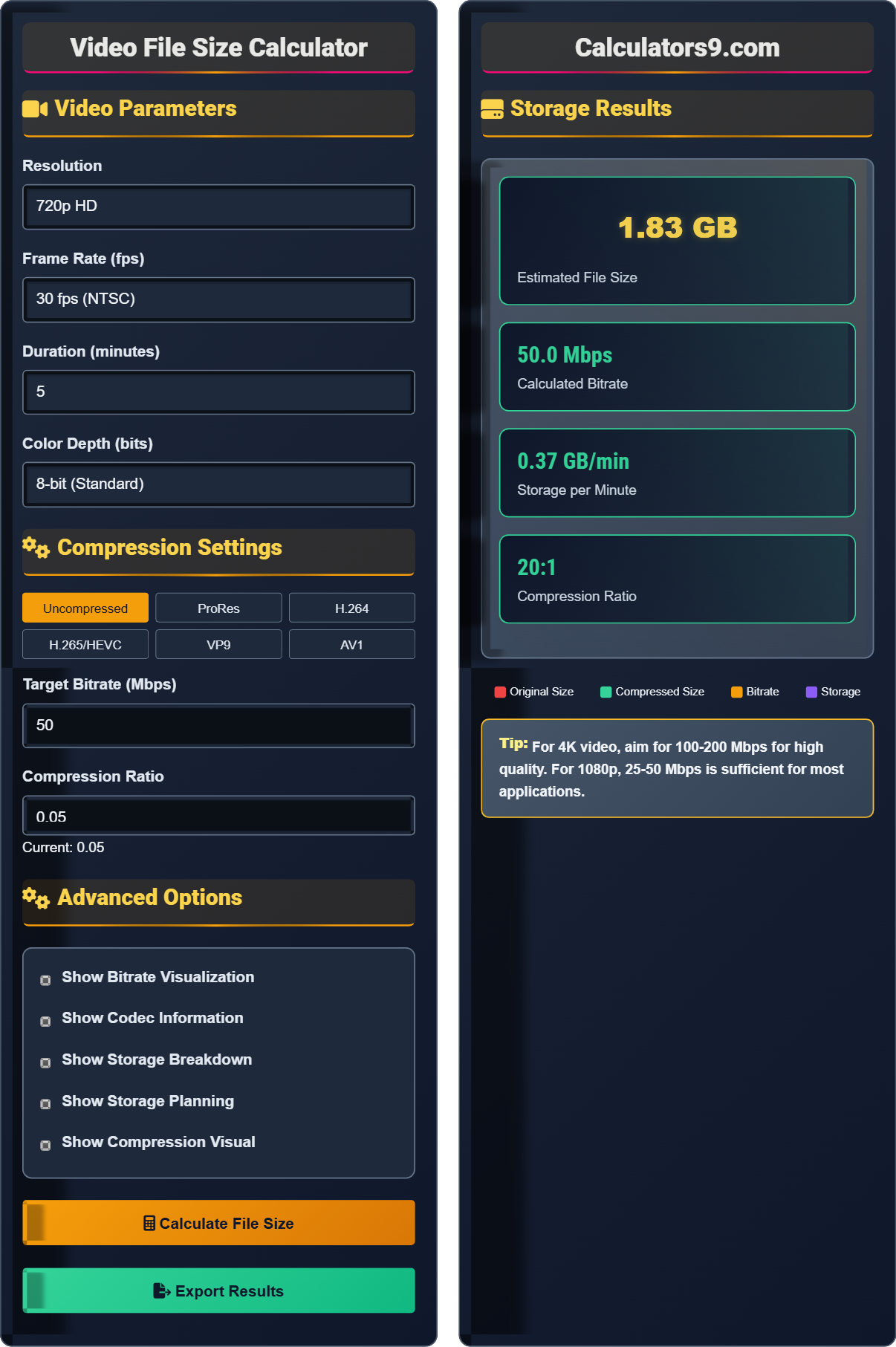
Video Parameters
Compression Settings
Advanced Options
Storage Results
Video File Size Fundamentals
Video file size refers to the amount of storage space a video file occupies, determined by its resolution, frame rate, duration, color depth, and compression method. Larger files contain more detail and higher quality, but require more storage and bandwidth for transmission.
\( \text{File Size (MB)} = \frac{\text{Bitrate (Mbps)} \times \text{Duration (seconds)}}{8} \)
Where Bitrate = Resolution × FPS × Color Depth × Compression Factor
- Higher resolution = larger file size
- Higher frame rate = larger file size
- Longer duration = larger file size
- Less compression = larger file size
Compression & Codecs
Codecs (coder-decoder) are technologies that compress and decompress video data. Different codecs offer various trade-offs between file size, quality, compatibility, and processing requirements.
- H.264/AVC: Excellent compatibility, good compression
- H.265/HEVC: Better compression than H.264
- ProRes: High quality, larger files
- VP9: Open source, efficient compression
- AV1: Latest standard, superior efficiency
- Always plan for 2x original size for editing
- Keep backup copies
- Consider proxy files for editing
- Account for transcoding overhead
Video File Size Learning Quiz
Which of the following has the greatest impact on video file size?
The answer is B) Video resolution. Resolution has the greatest impact on file size because it determines the number of pixels that need to be stored per frame. The formula for uncompressed video is: Bitrate = Resolution × FPS × Color Depth. For example, 4K video (3840×2160) has 4 times more pixels than 1080p (1920×1080), resulting in significantly larger file sizes even with compression.
Think of resolution as the number of tiny dots (pixels) that make up each frame of video. More dots mean more data to store. A 1080p video has 2,073,600 pixels per frame, while 4K has 8,294,400 pixels per frame - four times as many. This is why resolution is the dominant factor in file size calculations.
Resolution: The number of pixels in each dimension of a video frame
Pixel: The smallest unit of a digital image
Bitrate: The amount of data processed per second
• File size ∝ resolution² (approximately)
• File size ∝ frame rate
• File size ∝ duration
• Resolution has exponential impact on file size
• Frame rate impact is linear
• Duration impact is linear
• Underestimating the impact of resolution
• Ignoring the multiplicative effect of multiple factors
• Confusing file format with compression efficiency
Calculate the approximate file size of a 10-minute 1080p video at 30fps with 8-bit color depth and no compression. Then calculate the size with H.264 compression at a 15:1 ratio. Show your work.
Step 1: Calculate uncompressed bitrate
Resolution: 1920 × 1080 = 2,073,600 pixels
Uncompressed bitrate: 2,073,600 × 30 × 8 bits = 497,664,000 bps = 497.7 Mbps
Step 2: Calculate uncompressed file size
Duration: 10 minutes = 600 seconds
File size: (497.7 × 600) / 8 = 37,327.5 MB ≈ 36.4 GB
Step 3: Calculate compressed file size
Compression ratio: 15:1
Compressed size: 36.4 GB / 15 = 2.43 GB
Therefore, the uncompressed file would be approximately 36.4 GB, and with H.264 compression, it would be about 2.43 GB.
This calculation demonstrates the dramatic impact of compression. Without compression, a 10-minute 1080p video would require 36.4 GB of storage! Modern codecs like H.264 achieve significant size reductions while maintaining acceptable quality, making video distribution practical.
Compression Ratio: The ratio of original size to compressed size
Lossy Compression: Compression that removes some data permanently
Lossless Compression: Compression that preserves all original data
• Uncompressed = Resolution × FPS × Color Depth
• Compressed = Uncompressed / Compression Ratio
• File Size = (Bitrate × Duration) / 8
• Remember to convert bits to bytes (divide by 8)
• Always verify your units (seconds, megabytes, etc.)
• Compression ratios vary by content complexity
• Forgetting to convert bits to bytes
• Misapplying compression ratios
• Confusing Mbps with MBps
Sarah is planning to shoot a 20-minute documentary in 4K at 60fps with 10-bit color depth. She wants to keep the final file size under 20 GB. What minimum compression ratio does she need to achieve? Calculate the uncompressed size first, then determine the required compression ratio.
Step 1: Calculate uncompressed parameters
Resolution: 3840 × 2160 = 8,294,400 pixels
Uncompressed bitrate: 8,294,400 × 60 × 10 bits = 4,976,640,000 bps = 4,976.6 Mbps
Step 2: Calculate uncompressed file size
Duration: 20 minutes = 1,200 seconds
Uncompressed size: (4,976.6 × 1,200) / 8 = 746,490 MB ≈ 729.0 GB
Step 3: Calculate required compression ratio
Target size: 20 GB
Required ratio: 729.0 GB / 20 GB = 36.45:1
Therefore, Sarah needs a compression ratio of at least 36:1 to keep the file size under 20 GB.
This example shows the extreme storage requirements of high-resolution, high-frame-rate video. A 20-minute 4K60 video would require over 700 GB if uncompressed! This is why efficient codecs like H.265 and AV1 are essential for modern video production.
Storage Planning: Estimating storage needs for video projects
Proxy Files: Lower-resolution versions for editing
Working Files: Files created during post-production
• Always plan for more storage than estimated
• Consider multiple versions and backups
• Account for transcoding and processing overhead
• Plan for 3x original size for editing workflow
• Use SSDs for faster editing performance
• Consider cloud storage for backup and collaboration
• Underestimating storage for high-resolution video
• Not accounting for editing overhead
• Forgetting to plan for multiple backups
David is creating content for YouTube and needs to balance quality with upload time. He's producing 1080p60 video for a 15-minute gaming video. His internet upload speed is 10 Mbps. Which codec and bitrate combination would be most suitable? Consider both quality and upload time constraints.
Step 1: Calculate uncompressed requirements
1080p60 uncompressed: 1920 × 1080 × 60 × 8 = 8,957,952,000 bps ≈ 8,958 Mbps
Step 2: Calculate target file size for upload time
Upload speed: 10 Mbps
Recommended upload time: 2-3x video duration (30-45 minutes)
Maximum uploadable data: 10 Mbps × 2,700 seconds = 27,000 Mb = 3,375 MB ≈ 3.3 GB
Step 3: Calculate required compression
Uncompressed size: (8,958 × 900) / 8 = 1,007,775 MB ≈ 984.1 GB
Required compression: 984.1 GB / 3.3 GB ≈ 298:1
Step 4: Practical recommendation
For YouTube, H.264 at 25-35 Mbps for 1080p60 is standard. This provides good quality while keeping file size manageable for upload.
Recommended: H.264 at 30 Mbps, resulting in ~200 MB file size for 15 minutes.
This scenario illustrates the practical considerations in video production beyond just quality. Upload time, storage, and distribution platforms all influence codec and bitrate choices. Modern streaming platforms like YouTube re-encode uploaded videos anyway, so extremely high bitrates don't necessarily improve the final viewer experience.
Upload Time: The time required to transfer video to server
Streaming Quality: The quality after platform re-encoding
Bandwidth Limit: Maximum data transfer rate
• Target bitrate ≤ 1.5 × upload speed
• Consider platform-specific recommendations
• Balance quality with practical constraints
• Use variable bitrate (VBR) for better quality
• Upload during off-peak hours
• Consider chunked uploads for large files
• Creating files too large for upload capacity
• Not considering platform re-encoding
• Ignoring upload time constraints
Which of the following codecs offers the highest compression efficiency for the same video quality?
The answer is B) H.265/HEVC. H.265 (High Efficiency Video Coding) offers approximately 50% better compression efficiency than H.264, meaning it can achieve the same visual quality at half the bitrate. Among the options listed, H.265 provides the highest compression efficiency. Note that AV1 offers even better efficiency but wasn't listed as an option.
Compression efficiency is measured by how much data is needed to achieve a certain quality level. H.265 achieves better efficiency through improved prediction algorithms, larger block sizes, and more sophisticated entropy coding. However, this comes with increased computational requirements for encoding and decoding.
Compression Efficiency: The ability to reduce file size while maintaining quality
Prediction Algorithms: Methods to estimate pixel values from neighbors
Entropy Coding: Statistical methods to compress data
• H.265 ≈ 2× efficiency of H.264
• ProRes prioritizes quality over efficiency
• Higher efficiency = more processing power needed
• Use H.265 for storage and distribution
• Use ProRes for editing workflows
• Consider hardware support for newer codecs
• Assuming all codecs perform similarly
• Not considering hardware decoding support
• Prioritizing efficiency over compatibility
Video File Size FAQ
Q: How do I choose the right bitrate for my video project?
A: Bitrate selection depends on several factors:
- Resolution: 1080p: 15-25 Mbps, 4K: 50-100 Mbps
- Distribution: Streaming: 10-20 Mbps, Archive: 50+ Mbps
- Content Type: Animation: 15-25 Mbps, Action: 30-50 Mbps
Formula approximation: Bitrate (Mbps) = Resolution Factor × Content Factor
Where Resolution Factor is ~0.007 for 1080p, ~0.028 for 4K
Content Factor: 1.0 (simple), 2.0 (moderate), 3.0 (complex)
Q: What's the difference between bitrate and file size?
A: Bitrate and file size are related but distinct concepts:
Bitrate = Data rate per second (measured in Mbps)
File size = Total data in the file (measured in GB)
Relationship: File Size (MB) = (Bitrate (Mbps) × Duration (seconds)) / 8
For example, a 30 Mbps video for 10 minutes (600 seconds) = (30 × 600) / 8 = 2,250 MB ≈ 2.2 GB
Bitrate determines quality and compression, while file size indicates storage requirements.