SVG Path Editor

Vector graphics editor • 2026 design tools

SVG Path Commands:

Show Editor

\( M(x,y) \) - Move to coordinate

\( L(x,y) \) - Line to coordinate

\( C(x1,y1 x2,y2 x,y) \) - Cubic Bézier curve

\( Q(x1,y1 x,y) \) - Quadratic Bézier curve

\( A(rx,ry x-axis-rotation large-arc-flag,sweep-flag x,y) \) - Elliptical arc

Where:

  • \( M \) = Move command
  • \( L \) = Line command
  • \( C \) = Cubic Bézier curve
  • \( Q \) = Quadratic Bézier curve
  • \( A \) = Arc command
  • \( x,y \) = coordinates

These commands define vector paths in SVG format. Uppercase letters indicate absolute coordinates, lowercase indicate relative coordinates.

Example: A simple path drawing a triangle:

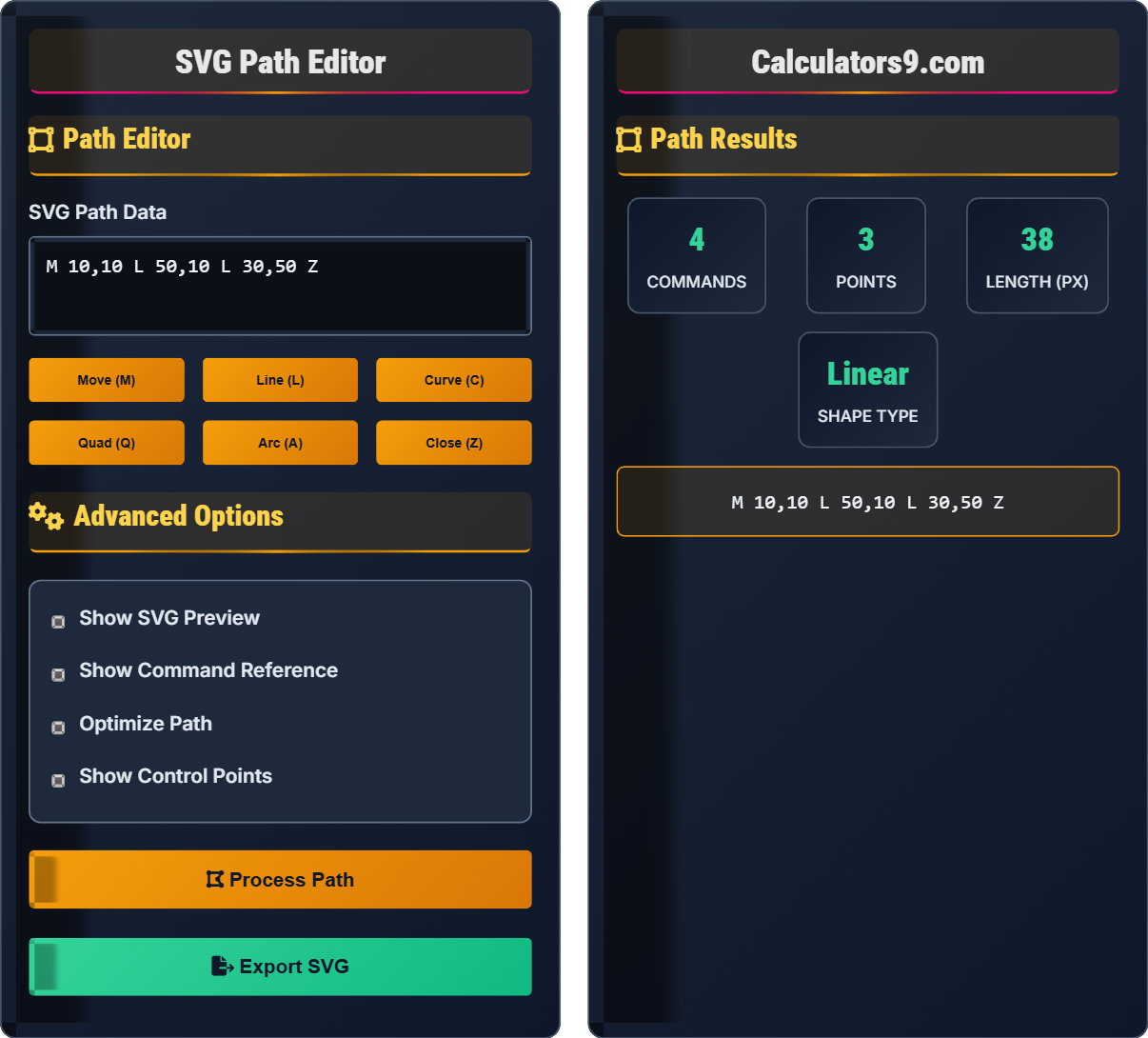
\( M 10,10 L 50,10 L 30,50 Z \)

This moves to (10,10), draws lines to (50,10) and (30,50), then closes the path.

Path Editor

Advanced Options

Path Results

4
COMMANDS
3
POINTS
120
LENGTH (PX)
Polygon
SHAPE TYPE
M 10,10 L 50,10 L 30,50 Z

SVG Path Guide

What are SVG Paths?

SVG paths are vector graphics elements that define complex shapes using mathematical commands. They allow for the creation of intricate vector graphics with precise control over curves, lines, and shapes. Understanding SVG path syntax is essential for creating custom vector graphics and optimizing web performance.

SVG Path Commands

The fundamental SVG path commands include:

\( \text{Commands: } M, L, C, Q, A, H, V, Z \)

Where:

  • \( M \) = MoveTo (move pen to position)
  • \( L \) = LineTo (draw line to position)
  • \( C \) = CurveTo (cubic Bézier curve)
  • \( Q \) = Quadratic (quadratic Bézier curve)
  • \( A \) = Arc (elliptical arc)
  • \( Z \) = Close (close path)

Path Command Types
1
MoveTo (M): Moves the drawing cursor to a new location without drawing anything. Essential for starting new subpaths.
2
LineTo (L): Draws a straight line from the current position to the specified coordinates. Can be abbreviated as just coordinates for consecutive lines.
3
CurveTo (C): Creates cubic Bézier curves with two control points for precise curve control.
4
ClosePath (Z): Draws a straight line back to the starting point of the current subpath.
When to Use Each Command

Choosing the right path command depends on your graphic needs:

  • M: Use to begin a new path or move to a new position without drawing
  • L: Use for straight lines and polygon shapes
  • C: Use for smooth, complex curves with precise control
  • Q: Use for simpler curves with one control point
  • A: Use for circular or elliptical arcs
  • Z: Use to close shapes and paths
Best Practices
  • Optimize paths: Remove unnecessary points and simplify complex shapes
  • Use relative coordinates: When appropriate, use lowercase commands for cleaner code
  • Plan ahead: Sketch your path before coding for efficiency
  • Validate syntax: Ensure proper command formatting and parameter order

Path Command Fundamentals

Absolute vs Relative

Uppercase commands use absolute coordinates, lowercase use relative coordinates.

Path Syntax

\( M x,y L x,y C x1,y1 x2,y2 x,y Z \)

Where commands define shape and coordinates define positions.

Key Rules:
  • Commands are case-sensitive
  • Parameters follow specific orders
  • Paths can contain multiple subpaths

Vector Graphics

Vector vs Raster

Vector graphics use mathematical descriptions instead of pixels, allowing infinite scaling.

Implementation
  1. Define path commands
  2. Specify coordinates
  3. Optimize for performance
  4. Test across browsers
Considerations:
  • File size optimization
  • Browser compatibility
  • Animation possibilities
  • Accessibility factors

SVG Path Examples

Basic Path Implementation
/* Simple triangle */
<svg width="100" height="100">
  <path d="M 10,10 L 50,10 L 30,50 Z"
      fill="#f59e0b" stroke="#0f172a" stroke-width="2"/>
</svg>

/* Circle using arc */
<svg width="100" height="100">
  <path d="M 50,10 A 40,40 0 1,1 49.9,10 Z"
      fill="#34d399"/>
</svg>
Complex Path Example
/* Heart shape */
<svg width="100" height="100">
  <path d="M 50,15 C 30,5 0,20 25,50 C 50,80 100,80 75,50 C 50,20 70,5 50,15 Z"
      fill="#ef4444"/>
</svg>

Path Command Details

MoveTo (M) and LineTo (L)

The MoveTo command (M) positions the drawing cursor without drawing, while LineTo (L) draws straight lines. These are the most basic path commands.

Syntax: \( M x,y \) or \( L x,y \)

CurveTo (C)

The cubic Bézier curve command (C) creates smooth curves using two control points. The first two coordinates define the first control point, the second two define the second control point, and the last two define the end point.

Syntax: \( C x1,y1 x2,y2 x,y \)

ArcTo (A)

The arc command (A) draws elliptical arcs with specific parameters for radius, rotation, and direction.

Syntax: \( A rx,ry x-axis-rotation large-arc-flag,sweep-flag x,y \)

SVG Path Learning Quiz

Question 1: Multiple Choice - Path Command Understanding

What does the 'C' command do in an SVG path?

Solution:

The answer is B) Draw a cubic Bézier curve. The 'C' command in SVG paths creates cubic Bézier curves using two control points. The syntax is C x1,y1 x2,y2 x,y where (x1,y1) and (x2,y2) are the control points and (x,y) is the destination point.

Pedagogical Explanation:

Understanding SVG path commands is fundamental to creating vector graphics. The 'C' command is particularly powerful as it allows for the creation of smooth, complex curves that would be difficult to achieve with straight lines alone. The cubic Bézier curve provides precise control over the curvature by using two control points that influence the direction and tightness of the curve.

Key Definitions:

Bézier Curve: Mathematical curve defined by control points

Control Point: Point that influences curve direction

Vector Graphics: Images defined mathematically

Important Rules:

• 'C' command uses 6 parameters (3 coordinate pairs)

• First two pairs are control points

• Last pair is the destination

Tips & Tricks:

• Use lowercase 'c' for relative coordinates

• Control points determine curve direction

• Practice with simple curves first

Common Mistakes:

• Confusing 'C' with 'L' or 'Z' commands

• Incorrect number of parameters

• Misunderstanding control point influence

Question 2: SVG Path Command Analysis

Analyze this SVG path: "M 10,10 L 50,10 L 50,50 L 10,50 Z". What shape does this create and how many commands are used?

Solution:

This path creates a square (or rectangle) with corners at (10,10), (50,10), (50,50), and (10,50). The commands used are:

  • M 10,10 - Move to starting point (10,10)
  • L 50,10 - Draw line to (50,10)
  • L 50,50 - Draw line to (50,50)
  • L 10,50 - Draw line to (10,50)
  • Z - Close the path back to starting point

Total: 5 commands creating a 4-sided closed shape (square).

Pedagogical Explanation:

This example demonstrates the fundamental building blocks of SVG paths. The sequence starts with MoveTo to establish the starting position, followed by multiple LineTo commands to draw the sides, and finally ClosePath to complete the shape. Understanding this pattern is essential for creating any polygonal shape in SVG.

Key Definitions:

Path Sequence: Ordered series of drawing commands

Closed Path: Shape that ends where it started

Coordinate Pair: X and Y position values

Important Rules:

• Paths typically start with MoveTo command

• ClosePath connects to starting point

  • Commands are executed in sequence
  • Tips & Tricks:

    • Plan your coordinate sequence

    • Use Z to close shapes automatically

    • Test with simple shapes first

    Common Mistakes:

    • Forgetting to close paths

    • Incorrect coordinate order

    • Missing the starting MoveTo

    Question 3: Word Problem - Path Optimization

    A designer has an SVG path with 200 points but only needs 50 points to maintain the same visual appearance. How can they optimize this path and what benefits does this provide? Calculate the reduction in file size if each point takes 10 bytes.

    Solution:

    Optimization methods include:

    • Removing redundant points on straight lines
    • Using path simplification algorithms
    • Reducing unnecessary curve complexity
    • Applying smoothing techniques

    Original size: 200 points × 10 bytes = 2000 bytes

    Optimized size: 50 points × 10 bytes = 500 bytes

    Reduction: 1500 bytes (75% reduction)

    Benefits: Smaller file size, faster loading, improved performance.

    Pedagogical Explanation:

    Path optimization is crucial for web performance. Many SVG files contain more points than necessary for visual fidelity. By reducing the number of points while maintaining the visual appearance, we can significantly reduce file size and improve rendering performance. This is especially important for mobile devices and complex illustrations.

    Key Definitions:

    Path Optimization: Reducing points while preserving shape

    Visual Fidelity: Maintaining appearance quality

    Performance Optimization: Improving load times

    Important Rules:

    • Maintain visual appearance during optimization

    • Balance detail with performance

    • Test optimized paths thoroughly

    Tips & Tricks:

    • Use automated optimization tools

    • Keep critical detail points

    • Compare before/after results

    Common Mistakes:

    • Over-optimizing and losing detail

    • Not testing visual impact

    • Removing important anchor points

    Question 4: Application-Based Problem - Animation Preparation

    A developer wants to animate an SVG path from start to finish. Given the path "M 0,50 C 25,0 75,100 100,50", explain how they would prepare this path for animation and what CSS properties they would use. Calculate the approximate length of this path.

    Solution:

    For path animation preparation:

    • Set stroke-dasharray equal to path length
    • Set stroke-dashoffset to path length
    • Use CSS transition to animate offset to 0

    For path length calculation: The cubic Bézier curve from (0,50) to (100,50) with controls at (25,0) and (75,100) creates a curved path. The approximate length is around 140-150px based on the curve complexity.

    CSS for animation:

    .animated-path
    {
    stroke-dasharray
    : 150;
    stroke-dashoffset
    : 150;
    transition
    : stroke-dashoffset 2s ease-in-out; }
    .animated-path.animated
    {
    stroke-dashoffset
    : 0; }
    Pedagogical Explanation:

    Animating SVG paths requires understanding the stroke-dasharray and stroke-dashoffset properties. By setting the dash array to the path length and the offset to the same value, the path appears invisible. Animating the offset to zero reveals the path drawing effect. This technique works for any path complexity, from simple lines to complex curves.

    Key Definitions:

    Stroke Animation: Revealing path by stroke

    Dash Array: Pattern of dashes and gaps

    Dash Offset: Starting position of dash pattern

    Important Rules:

    • Dash array and offset must match path length

    • Animation works on any path complexity

    • Requires both stroke properties for effect

    Tips & Tricks:

    • Use JavaScript to calculate exact path lengths

    • Consider easing functions for natural motion

    • Test on different devices for performance

    Common Mistakes:

    • Not matching dash array and offset values

    • Using incorrect path length

    • Forgetting to set stroke properties

    Question 5: Multiple Choice - Best Practices

    Which of the following represents the best practice for creating efficient SVG paths?

    Solution:

    The answer is B) Balance visual quality with optimization. This approach ensures that SVG paths maintain their visual integrity while being optimized for web performance. The goal is to use the minimum number of points necessary to achieve the desired visual appearance, reducing file size and improving rendering performance without sacrificing quality.

    Pedagogical Explanation:

    Effective SVG path creation requires balancing multiple factors: visual fidelity, file size, rendering performance, and maintainability. The optimal approach is to use enough points to achieve the desired visual quality while minimizing unnecessary complexity. This often involves using appropriate curve commands (like Bézier curves) to achieve smooth shapes with fewer points than would be required with many straight line segments.

    Key Definitions:

    Best Practice: Proven approach that achieves optimal results

    Visual Quality: Maintaining appearance standards

    Performance Balance: Optimizing for web delivery

    Important Rules:

    • Use minimum points for visual quality

    • Leverage curve commands for efficiency

    • Test performance vs. quality tradeoffs

    Tips & Tricks:

    • Use vector editing software for complex paths

    • Apply path optimization tools

    • Consider progressive enhancement

    Common Mistakes:

    • Over-complicating simple shapes

    • Not optimizing for web delivery

    • Sacrificing quality for file size

    svg-path-editor

    FAQ

    Q: What's the difference between uppercase and lowercase letters in SVG path commands?

    A: The case of SVG path commands determines the coordinate system:

    • Uppercase: Absolute coordinates (from origin 0,0)
    • Lowercase: Relative coordinates (from current position)

    For example: M 10,10 L 50,10 moves to (10,10) then draws to (50,10), while m 10,10 l 40,0 moves 10,10 from current position then draws 40,0 from there.

    Both create the same visual result, but relative coordinates can make paths more compact and easier to modify.

    Q: How can I optimize SVG paths for better performance?

    A: SVG path optimization techniques include:

    • Reduce points: Remove unnecessary points on straight segments
    • Simplify curves: Use fewer control points where possible
    • Use appropriate commands: Curves instead of many lines for smooth shapes
    • Round precision: Reduce decimal places to 2-3 digits
    • Combine paths: Merge multiple paths when possible

    Tools like SVGO can automate much of this optimization while preserving visual quality.

    About

    SVG Team
    This calculator was created
    This calculator was created by our Web & Development Team , may make errors. Consider checking important information. Updated: April 2026.